.png?width=300&height=300&name=Untitled%20design%20(6).png)
Valor Virtual Terminal QRG
SALE
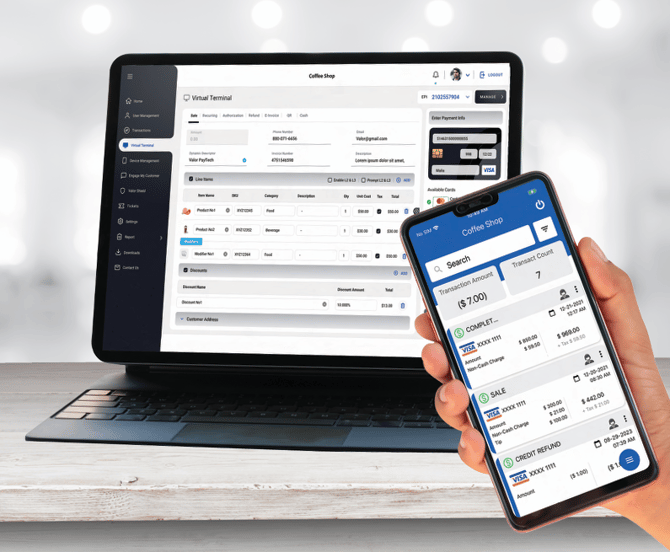
- Enter the Transaction Amount.
- Enter the Phone Number or Email Address.
- Enter the Credit Card information.
- Please Note: Credit card information will be tokenized for future transactions.
- Enter the Invoice Number and/or Description (optional).
- Scroll down and select Process.
- Confirm the Transaction Details on the Summary Details window.
- By clicking the X and entering the password, you can remove the Non-Cash Charge.
- Select Process to finalize the transaction.
VOID
- Go to the Transactions Module on the sidebar menu.
- Select the Vertical Ellipsis (:) and choose Void.
- Enter the Phone Number or Email Address for the receipt (optional).
- Select Proceed.
REFUND (Against Specific Transaction)
- Go to the Transactions Module on the sidebar menu.
- Select the Vertical Ellipsis (:) and choose Issue Refund.
- Confirm the amount you want to refund.
- Enter the Phone Number or Email Address for the receipt (optional).
- Select Proceed.
REFUND
- Enter the Transaction Amount.
- Enter the Phone Number or Email Address.
- Enter the Credit Card information.
- Please Note: Credit card information will be tokenized for future transactions.
- Enter the Invoice Number and/or Description (optional).
- Scroll down and select Process.
- Confirm transaction details on the Summary Details window.
- Select Process to finalize the transaction.
PREAUTH
- Enter the Transaction Amount.
- Enter the Phone Number or Email Address.
- Enter the Credit Card information.
- Please Note: Credit card information will be tokenized for future transactions.
- Enter the Invoice Number and/or Description (optional).
- Scroll down and select Process.
- Confirm transaction details on the Summary Details window.
- Select Process to finalize the transaction.
E-INVOICE
- Enter the Transaction Amount.
- Enter the Phone Number or Email Address.
- Set an Expiration Date.
- Enter the Customer Name, Invoice Number and/or Description (optional).
- Select Send E-Invoice.
- Pay Now Link
- Check the Pay Now Link checkbox.
- Select the Expiration Date or set to Never Expire.
- You can select Flexible to allow customers to enter the amount of their choice.
- Scroll down and select Send Pay Now.
CASH
- Enter the Transaction Amount.
- Enter the Phone Number or Email Address.
- Enter the Invoice Number and/or Description (optional).
- Select Process.
RECURRING BILLING
- Select Subscription or Installment.
- Subscription — Set up a recurring bill for a certain amount that can continue for a specified period or indefinitely.
- Installment — Set up a recurring bill for part of a specified amount. Customer is billed until that specified amount has been paid.
- Select the date you want the payment to be collected every month/week.
- Select the Frequency:
- Weekly — Charge the customer on a specific day of the week.
- Bi-Weekly — Charge the customer on alternate weeks, on a specific day.
- Monthly — Charge the customer on a specific date of the month.
- For Subscription, enter the number of weeks/months the subscription will last or select that it never expires.
- For Installment, enter the number of payments required for the total amount to be paid off.
LINE ITEMS
- Select the checkbox that is available for Line Items.
- If you have already added Products (My Settings > Product Settings), select a SKU from the dropdown or manually enter the SKU, Category, Description, QTY, Unit Cost, and Tax.
- For additional line items, select + ADD ITEM.
- To delete line items, select the Delete icon.
- Add discounts by selecting the checkbox for Discounts, then select a discount from the dropdown.
- If there are no discounts in the dropdown, go to My Settings > Discount Settings to add one.
CUSTOMER'S DETAILS
- Enter the Customer Name.
- Enter the Street Address.
- Enter the Street Name.
- Enter the Unit Number (if any).
- Enter the Zip Code.
- Enter the City.
- Select the State.
- Select the checkbox if the Shipping Address and Billing Address are the same.
- If the Billing Address is different, repeat steps 1 to 7 for the Billing Address.
BATCH OUT
- Go to the Transactions Module on the sidebar menu.
- Select the vertical ellipsis (:) and choose Open batch.
- Select Action.
- Select Batch Out.
- Confirm the number of transactions and amount.
- Select Yes to settle the batch.
TIP ADJUST
- Go to the Transactions Module on the sidebar menu.
- Select the vertical ellipsis (:) and choose Open batch.
- Select Action.
- Enter the Tip Amount on the Tip Lines.
- When finished, scroll up and select Adjust Tip.
- Confirm the number of tip adjustments made and select OK.
TICKET (PostAuth or Capture PreAuth)
- Go to the Transactions Module on the sidebar menu.
- Select the vertical ellipsis (:) and choose Capture Transaction.
- Confirm transaction details on the Summary Details window.
- Select Process to finalize the transaction.
MANAGE
- E-Invoices: View records of all E-Invoices sent to customers and their status.
- From the vertical ellipsis (:), resend the E-Invoice to the customer or cancel it.
- Recurring Billing: View records of all Recurring Bills.
- From the vertical ellipsis (:), make changes to specific Recurring Bills.
- Whitelist IP Address: Create rules to always allow specific IP addresses.
- API Keys: Create your APP ID and API Key for online shopping cart integration.
Videos
Resources:
- Valor Vault User Guide
-
Valor QuickBooks User Guide
- Valor Vault Partner Brochure
- Valor Quick Books Partner Brochure
No QR Reader? Go to https://kb.valorpaytech.com/