.png?width=300&height=300&name=Untitled%20design%20(6).png)
What is RKI and when is it required
When a merchant is set up to accept PIN-debit or EBT, the terminal must have an RKI (Remote Key Injection) completed to enable those transaction types. Make sure the correct RKI key is selected for the merchant platform; selecting the wrong key can cause transaction issues.
Valor RKI Keys (reference)
- VA-Envoy1-1394
-
- TSYS Nuvei
-
- Carlton 501
- VA-Envoy-1394
-
- TSYS Esquire
-
- Carlton 500
- VA-ElavonBDK-1394
-
- For use ONLY with the Elavon Direct platform
Note: These keys are taken from the Valor Portal RKI keys reference. Always confirm the correct key in the Valor Portal Key Management for the merchant’s processing platform before performing an RKI.
Selecting the correct RKI in the Valor Portal
-
In the Valor Portal, open the merchant’s file build and go to Key Management.
-
Choose the appropriate RKI key based on the merchant’s processing platform (for example, an EPI Omaha merchant accepting EBT would use VA-Envoy-1394 for a Carlton 500).
-
Save the file build and push the build/update to the device as usual.
Selecting the correct RKI key depends on the merchant’s platform—consult the RKI Keys reference in the Valor Portal for the appropriate mappings.
Manual RKI download — Valor terminal (terminal procedure)
When to use: use Manual RKI when keys are missing on the device or after updating Key Management. If the device shows “keys not present,” perform a manual RKI (see troubleshooting section).
Keys not Present in Valor Devices
|
From the home screen, press Menu (≡ / triple lines). Press the Page Down arrow until you reach Host Utility (or select Host Utility). |
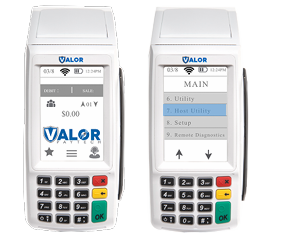 |
|
Press Page Down (or navigate) and select RKI (or the RKI option 3). |
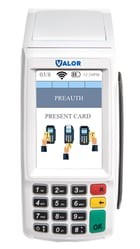 |
|
When prompted for the password for RKI download, enter 82567729 (Valor master password used for RKI download). The device will begin the RKI download. Pay close attention to the final message:
|
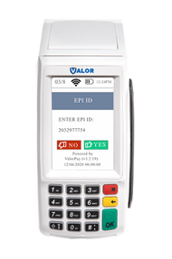 |
If the download fails, proceed to troubleshooting / contact ISO or Valor support if necessary.
RKI failed error — soft reset procedure
If the terminal displays “RKI failed” and reloading does not resolve the issue, perform a soft reset (clear DB) as outlined below.
Before proceeding, confirm that ParamDownload is enabled in the Online Portal for the EPI; otherwise, the terminal will show “Parameter Disabled” during reload.
Keys Not Present on Valor Terminal
When to use:
- The terminal displays “Keys not present” or “RKI failed” on the screen. These are the direct triggers to follow the checklist.
- PIN-debit or EBT transactions suddenly fail or decline (merchant previously processed these). Lack of keys prevents PIN/EBT processing.
- After making changes in Key Management (adding/changing the RKI key in the Valor Portal) and the device doesn’t receive the new keys. Always validate the portal first.
- After a device reset, firmware/app update, or hardware replacement where keys may not have been re-applied. (If keys weren’t reloaded, you’ll see the message above.)