.png?width=300&height=300&name=Untitled%20design%20(6).png)
If you see the "Keys Not Present" error on the Valor terminal, it typically means the Remote Key Injection (RKI) keys need to be reloaded.
Follow the steps below to manually perform an RKI and resolve this issue.
Before proceeding, check Key Management in Valor to confirm the key is listed. If it is missing, proceed with the RKI steps below.
Manually Perform RKI Download
-
[≡] Tap the three lines at the bottom of the terminal screen.
-
Press the 🡇 arrow and select Host Utility.
-
Enter the password (use the last 4 digits of the EPI, shown on screen).
-
Press the 🡇 arrow again and choose RKI.
-
Input the Valor Master Password:
82567729and press OK. -
When prompted, select Dynamic (not Middleware).
-
Wait for the process to complete.
Test the Terminal
After the RKI download:
-
Run a test transaction.
-
If you still see the “keys not present” error, continue to the next step.
Manual Update via Valor Device
Before proceeding with a manual update:
-
Log into Valor Device Management on your computer.
-
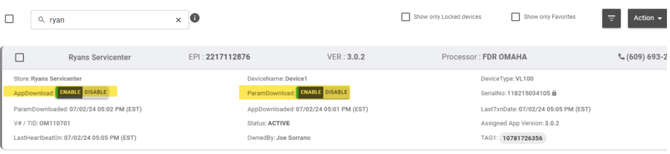
Ensure both “App Download” and “Param Download” are enabled.
As shown in the image below.
Force Update from Terminal
-
On the main screen, press the Star (*) key.
-
Press #6, then hit OK.
-
Return to the main screen and try a test transaction.