.png?width=300&height=300&name=Untitled%20design%20(6).png)
Click Play to Watch Video
Instructions
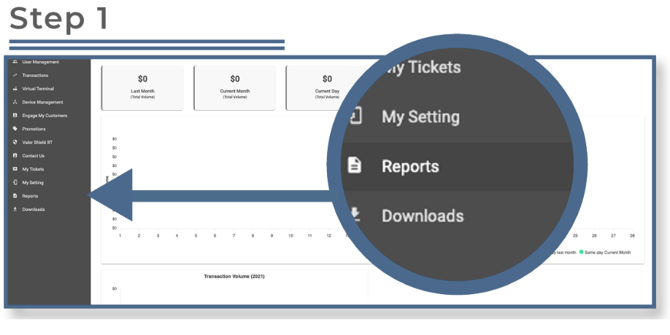
Select Reports in the sidebar menu.
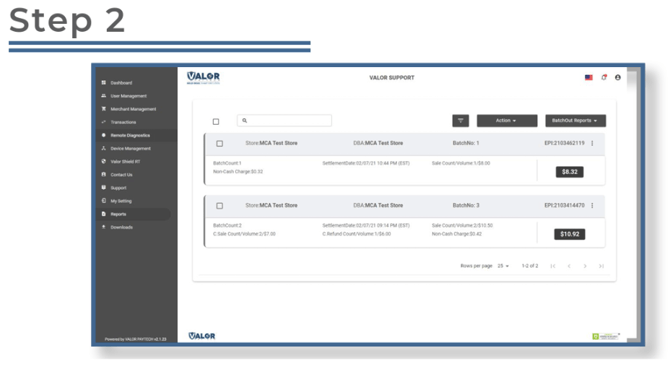
From here, select the report you want to view or export — for example, Batch Report or Transaction Summary.
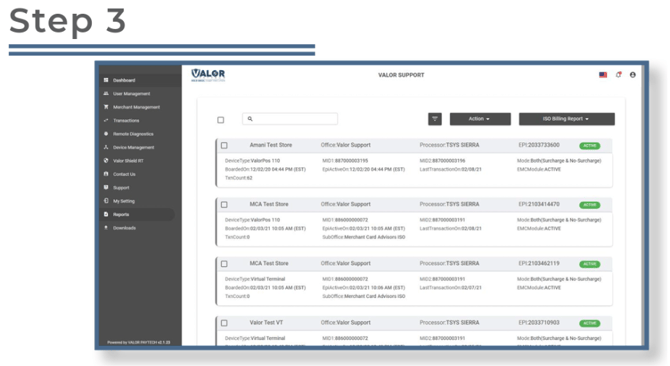
After selecting the report, you’ll see data for each store within your merchant profile.
-
If there is only one store in your merchant account, you will see only one report.
-
Summary Report: The Summary Report provides a high-level overview of transaction activity within the selected date range. It includes total sales, refunds, tips, fees, and net amounts — summarized by batch or by store. This report is ideal for quick performance checks or end-of-day reconciliation.
-
Summary with Details: The Summary with Details report includes everything in the Summary Report, plus individual transaction-level data. You can view each sale, refund, and adjustment, along with card type, transaction time, and terminal ID. This version is best used for troubleshooting discrepancies, verifying individual transactions, or reviewing employee activity.
-
To view report details, click the ellipsis (⋮), then select Show Details.
-
To export a report, check the box at the top, click Action, then select Export. Choose the desired format (use .xls unless instructed otherwise).