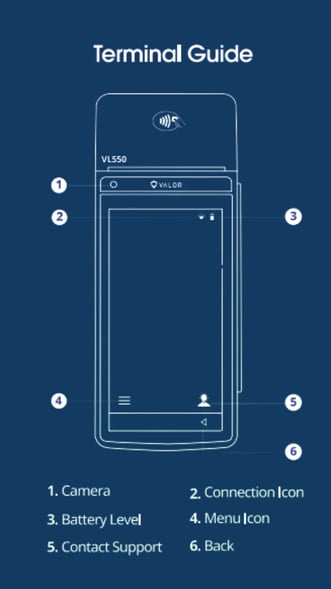
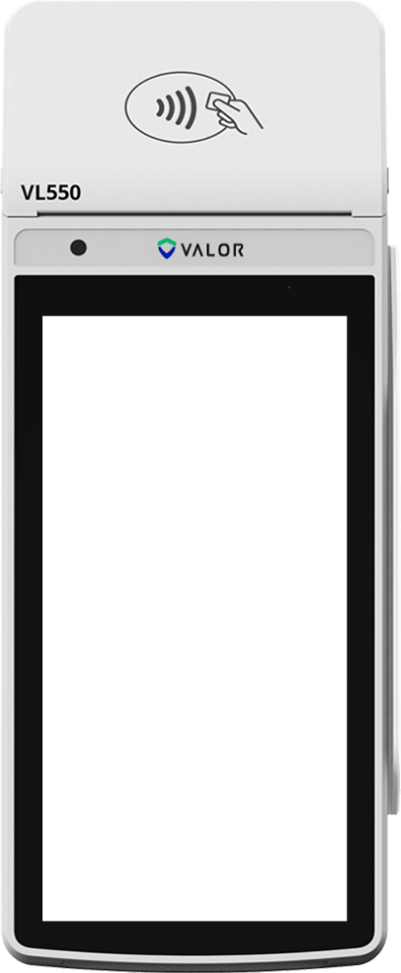
Valor VL550 Android POS Dual Pricing QRG
This article offers Quick Reference Guides for the VL550 Android Dual Pricing POS, outlining terminal button flows and step-by-step payment procedures. The application supports Dual Pricing, Cash Discounting, and Surcharging, helping users efficiently navigate the payment application and process transactions accurately.
|
|
PERFORMING A CARD SALE (CREDIT/DEBIT)
- Enter Transaction Amount, then select CARD or press Enter.
- Enter Clerk ID, if enabled.
- Tap, Insert, or Swipe Card to process the transaction.
If Credit, skip to Step 7. - If a Debit Card is used, select whether to run as
Credit (Signature Debit) or Debit (PIN Debit).
If Credit (Signature Debit), proceed to Step 7. - Enter PIN, then select Enter.
If prompted to enter a Tip Amount, have the customer enter the Tip Amount, followed by Enter. - If prompted, enter Cashback Amount, then press Enter.
- Select Print Receipt or enter SMS Number and select Go Green SMS Receipt to complete the transaction.
PERFORMING ADVANCED TRANSACTION OPTIONS
- Select the Menu button.
- Select Payment.
- Select from one of the following main categories:
CARD
- Sale
- Auth
- Refund
- Void
- Ticket
- Presale
CASH
- Sale
- Refund
EBT
- Sale
EBT CASH
- Sale
GIFT
- Sale
- Balance
- Add Value
- Activate
- Deactivate
4. Process the transaction as expected.
Videos
Downloadable Quick Reference Guide
Note: Looking to better understand the Valor VL550 and its capabilities? All Quick Reference Guide resources mentioned here are available for download, perfect for sharing with your team or reviewing offline to see how the VL550 can streamline your payment processing experience.

No QR Reader? Go to https://kb.valorpaytech.com/