.png?width=300&height=300&name=Untitled%20design%20(6).png)
|
|
Performing a Card Sale
|
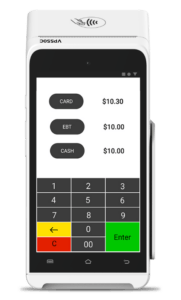
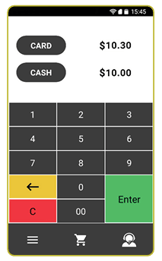
Enter the Transaction Amount, then press either card or Enter to proceed.
|
|
| Enter Clerk ID, if enabled. | 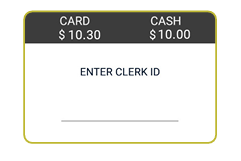 |
| Tap/Insert/Swipe Card to Process Transaction. | 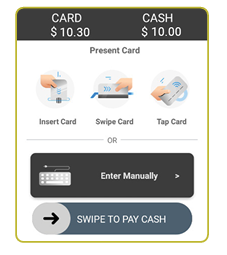 |
| If Debit Card is used, select whether running as Credit (Signature Debit) or Debit (PIN Debit). | 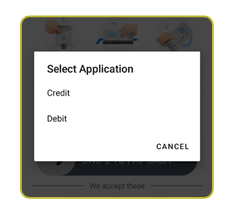 |
|
Enter PIN, then select Enter. If prompted to enter a Tip Amount, have the customer enter the Tip Amount, followed by Enter. |
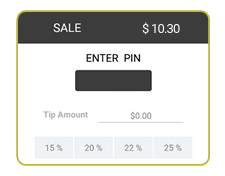
|
| Enter Cashback Amount (if prompted), followed by Enter. | 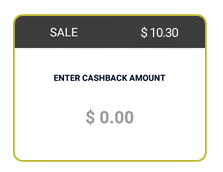 |
| Enter Mobile Number for SMS or Mail ID for Email to get your receipt. | 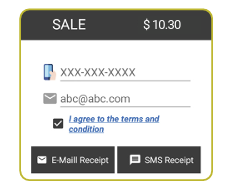 |
PERFORMING ADVANCED TRANSACTION OPTIONS
- Select the Menu Button.
- Select Payment.
- Select one of the following:
Card Sale | Auth | Refund | Void | Ticket | Presale Cash Sale | Refund EBT Food Sale Gift Sale | Balance | Add Value | Activate | Deactivate - Process transaction as expected
Videos
Downloadable Resources
Note: Looking to better understand the Valor VP550c and its capabilities? All Quick Reference Guide resources mentioned here are available for download, perfect for sharing with your team or reviewing offline to see how the VP500c can streamline your payment processing experience.