.png?width=300&height=300&name=Untitled%20design%20(6).png)
Valor VP550c with Dual Pricing QRG
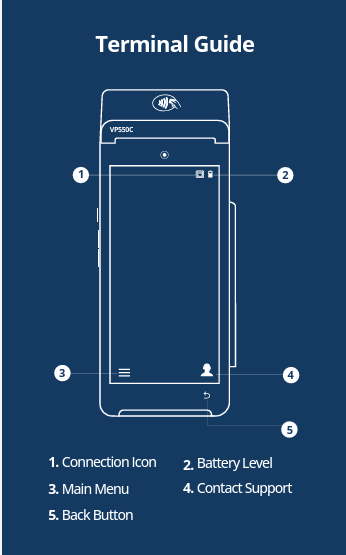
|
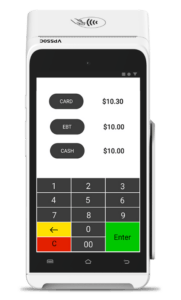
|
CREDIT SALE
- Enter Transaction Amount and press OK.
- Swipe/Insert/Tap card on Present Card screen or start typing card number for Manual Entry.
- Sign and Tip if prompted.
- Select receipt delivery method.
DEBIT SALE
- Tap Credit until Debit is displayed.
- Enter Transaction Amount and press OK.
- Swipe/Insert/Tap card on Present Card screen or start typing card number for Manual Entry.
- Enter PIN and Tip if prompted.
- Select receipt delivery method.
CREDIT VOID
- Tap Sale until Void is displayed. Press OK and enter password.
- Select Tran Number or Card Number. If Tran Number, enter transaction number. If Card Number, enter last 4 digits of card.
- Transaction will appear on screen. Press OK to void the transaction.
- Select receipt delivery method.
CREDIT REFUND
- Tap Sale until Refund is displayed. Enter refund amount and press OK.
- Enter password if prompted.
- Swipe/Insert/Tap card on Present Card screen or start typing card number for Manual Entry.
- Select receipt delivery method.
CREDIT PREAUTH
- Tap Sale until Preauth is displayed. Enter dollar amount and press OK.
- Swipe/Insert/Tap card on Present Card screen or start typing card number for Manual Entry.
- Select receipt delivery method.
CAPTURE PREAUTH (Credit)
- Tap Sale until Ticket is displayed. Enter dollar amount and press OK and enter password.
- Select Tran Number or Card Number. If Tran Number, enter transaction number. If Card Number, enter last 4 digits of card.
- Transaction will appear on screen. Press OK to complete the transaction.
- Sign and Tip if prompted.
- Select receipt delivery method.
PRE-SALE TICKET
- Tap the Main Menu icon, tap the Page Down icon (⇩) and select Host Utility.
- Enter the password and select Pre-Sale Ticket.
- Enter dollar amount, press the OK button and the pre-sale ticket will be printed.
⭐FAVORITES MENU
- REPRINT RECEIPT — Print receipt for last transaction.
- TIP ADJUST — Adjust the tip amount on transactions performed within current batch.
- SETTLEMENT — Option to settle the current batch.
- REPORT — See summary reports for current open batch, the last settled batch, and detailed reports of the last 5 batches settled.
- CHANGE PASSWORD — Set one general password OR create custom passwords for settlements, voids/refunds & removing custom fee.
- DOWNLOAD PACKAGE — Applies parameter changes or updates version on device.
- COMM CONFIG — Configure your internet connection settings.
- REBOOT — Power cycles device.
- REMOTE DIAGNOSTICS — Allows ISO to remotely troubleshoot the device.
CONNECT TO WIFI
- From the Home Screen, tap the Main Menu icon.
- Tap Settings, then WiFi Config.
- Tap SSID.
- Enter WiFi Password (Password is case sensitive).
- Tap Connect.
Videos
Downloadable Resources
Note: Looking to better understand the Valor VP550c and its capabilities? All Quick Reference Guide resources mentioned here are available for download, perfect for sharing with your team or reviewing offline to see how the VP500c can streamline your payment processing experience.