.png?width=300&height=300&name=Untitled%20design%20(6).png)
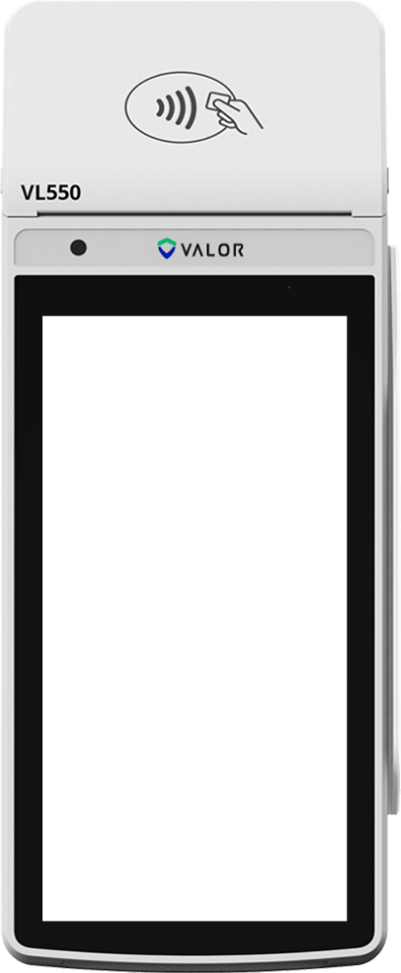
Valor VL550 Android POS QRG
This article offers Quick Reference Guides for the VL550 Android terminal, outlining terminal button flows and step-by-step payment procedures.
 |
|
CREDIT SALE
- Enter Transaction Amount and tap Enter.
- Swipe/Insert/Tap card on Present Card screen.
For Manual Key Entry, select the Enter Manually option. - Sign and Tip if prompted.
- Select receipt delivery method.
DEBIT SALE
- Tap Credit until Debit is displayed.
- Enter Transaction Amount and press Enter.
- Swipe/Insert/Tap card on Present Card screen.
For Manual Key Entry, select the Enter Manually option. - Enter PIN and Tip if prompted.
- Select receipt delivery method.
CREDIT VOID
- Tap Sale until Void is displayed.
- Enter the Transaction Number from the receipt or the last 4 of the card number and tap Enter.
- When prompted, enter Password.
- Tap to confirm the transaction that needs to be voided.
- Select receipt delivery method.
CREDIT REFUND
- Tap Sale until Refund is displayed.
- Enter Transaction Amount and tap Enter.
- Swipe/Insert/Tap card on Present Card screen.
For Manual Key Entry, select the Enter Manually option. - Select receipt delivery method.
CREDIT PREAUTH
- Tap Sale until Preauth is displayed.
- Enter Transaction Amount and tap Enter.
- Swipe/Insert/Tap card on Present Card screen.
For Manual Key Entry, select the Enter Manually option. - Select receipt delivery method.
CAPTURE PREAUTH (Credit)
- Tap Sale until Ticket is displayed.
- Enter Transaction Amount, tap Enter and enter Password.
- Enter the Transaction Number from the receipt or the last 4 of the card number and tap Enter.
- Sign and Tip if prompted.
- Select receipt delivery method.
PRE-SALE TICKET
- Tap the Main Menu icon → tap the Page Down icon and select Pre Sale.
- Enter the Transaction Amount, press the Enter button and the pre-sale ticket will be printed.
MAIN MENU OPTIONS
☰
- REPORTS — See summary reports for current open batch, the last settled batch, and detailed reports of the last 5 batches settled.
- SETTLEMENT — Option to settle the current batch.
- TIP ADJUST — Adjust the tip amount on transactions performed within current batch.
- REPRINT RECEIPT — Prints the receipt for last transaction performed.
- PRE SALE — Generates a Pre-Sale ticket.
- REPRINT — Print receipt for the last transaction or any transaction in the current open batch.
- UPDATES — Apply parameter changes or update the device version.
- SETTINGS — Configure settings such as Server/Clerk, Change Password, WiFi Config, SIM Config, and Utilities.
CONNECT TO WIFI
- From the Home Screen, tap the Main Menu icon.
- Tap Settings, then WiFi Config.
- Tap SSID.
- Enter WiFi Password (Password is case sensitive).
- Tap Connect.
Videos
Downloadable Quick Reference Guide
All Quick Reference Guide resources mentioned in this article are available for download for easy access and offline use.

No QR Reader? Go to https://kb.valorpaytech.com/