.png?width=300&height=300&name=Untitled%20design%20(6).png)
Valor VL500 QRG
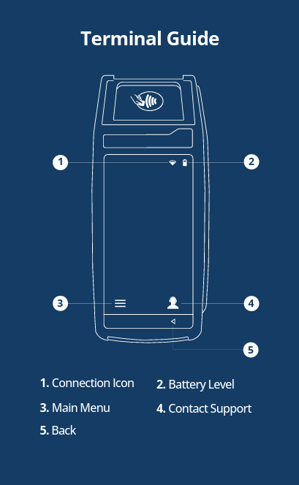 |

|
CREDIT SALE
- Enter Transaction Amount and tap Enter.
- Swipe/Insert/Tap card on Present Card screen. For Manual Key Entry, select the Enter Manually option.
- Sign and Tip if prompted.
- Select receipt delivery method.
DEBIT SALE
- Tap Credit until Debit is displayed.
- Enter Transaction Amount and press Enter.
- Swipe/Insert/Tap card on Present Card screen. For Manual Key Entry, select the Enter Manually option.
- Enter PIN and Tip if prompted.
- Select receipt delivery method.
CREDIT VOID
- Tap Sale until Void is displayed. Press Enter (OK) and enter password.
- Enter the Transaction Number from the receipt or the last 4 of the card number and tap Enter.
- When prompted enter Password.
- Tap to confirm the transaction that needs to be voided.
- Select receipt delivery method.
CREDIT REFUND
- Tap Sale until Refund is displayed.
- Enter the Transaction Amount and tap Enter.
- Swipe/Insert/Tap card on Present Card screen. For Manual Key Entry, select the Enter Manually option.
- Select receipt delivery method.
CREDIT PREAUTH
- Tap Sale until Preauth is displayed.
- Enter Transaction Amount and tap Enter.
- Swipe/Insert/Tap card on Present Card screen. For Manual Key Entry, select the Enter Manually option.
- Select receipt delivery method.
CAPTURE PREAUTH (Credit)
- Tap Sale until Ticket is displayed.
- Enter Transaction Amount, tap Enter and enter Password.
- Enter the Transaction Number from the receipt or the last 4 of the card number and tap Enter.
- Sign and Tip if prompted.
- Select receipt delivery method.
PRE-SALE TICKET
- Tap the Main Menu icon — tap the Page Down icon and select Pre Sale.
- Enter the Transaction Amount, press the Enter button and the pre-sale ticket will be printed.
MAIN MENU OPTIONS
- REPORTS — See summary reports for current open batch, the last settled batch, and the detailed reports of the last 5 batches settled.
- SETTLEMENT — Option to settle the current batch.
- TIP ADJUST — Adjust the tip amount on transactions performed within current batch.
- REPRINT RECEIPT — Prints the receipt for last transaction performed.
- PRE SALE — Generates a Pre-Sale ticket.
- REPRINT — Option to print receipt for the last transaction or print the receipt for a specific transaction within the current batch.
- UPDATES — Used to apply parameter changes or update the version on the device.
- SETTINGS — Configure settings on the device such as Server/Clerk, Change Password, Wifi Config, SIM Config, and Utilities.
CONNECT TO WIFI
- From the Home Screen, tap the Main Menu icon.
- Tap Settings, then Wifi Config.
- Tap SSID.
- Enter WiFi Password (Password is case sensitive).
- Tap Connect.
Additional Resources