.png?width=300&height=300&name=Untitled%20design%20(6).png)
 |
|
Connecting the RCKT to Your Smartphone
-
Press and hold the Power icon to turn on the device.
-
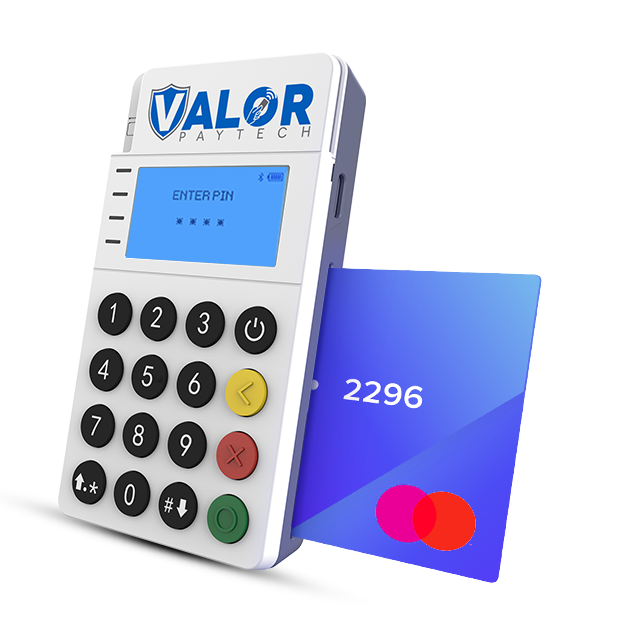
When fully powered on, the screen will look like the example shown on the device display.
-
Open the ValorPay App on your smartphone.
-
Select the banner at the bottom of the screen labeled MPOS.
-
Select the device that matches your C-ME30S-685xxx number.
-
Tap Pair to connect your smartphone with the RCKT Mobile POS via Bluetooth.
-
Once your endpoint identifier is loaded, you’re ready to start accepting payments.
Note: If pairing fails, ensure Bluetooth is enabled on your smartphone and that only one RCKT device nearby is in pairing mode.
Accepting Payments
-
On the ValorPay App home screen, you’ll see: MERCHANT NAME | RCKT NAME | CREDIT | SALE buttons.
-
Tap CREDIT to choose the Payment Form from the dropdown menu:
-
CREDIT | DEBIT | EBT FOOD | EBT CASH | CASH
-
-
Tap SALE to choose the Transaction Type from the dropdown menu:
-
SALE | VOID | AUTH | TICKET | REFUND | PRESALE
-
-
Enter the Transaction Amount, followed by the customer’s Email Address and Mobile Number.
-
Press the Right Arrow in the top-right corner to continue.
-
A prompt in both the ValorPay App and on the RCKT will read: “Please Insert or Tap the Card.”
-
If Tipping is activated, select one of the Smart Tip options or enter a custom tip amount, then press the Right Arrow to continue.
-
If Cash Discounting is activated, the adjusted sale amount will be displayed.
-
If Surcharging is activated, a Non-Cash Charge Amount will be displayed. The customer must approve it by tapping the checkbox.
-
If Dual Processing is activated, Credit | EBT | Cash pricing options will be displayed for the customer to select from.
The RCKT Mobile POS will beep once after the payment card is swiped, dipped, or tapped indicating a successful read.
-
-
Review the transaction details and press the Right Arrow to continue.
-
Use the Back Arrow in the upper left corner to correct any errors.
-
When ready, tap PAY. “Approved” will appear on both the ValorPay App and RCKT screens.
-
Receipts are automatically emailed or sent via SMS to the customer.
Tip: Ask the customer for their preferred receipt method before completing payment.
Transactional Flow
 |
|
 |
2. Choose the Payment Form and Transaction Type, then press the Right Arrow to continue. |
 |
3. Enter or select the Tip Amount, then press the Right Arrow to continue.
|
 |
4. Select or enter the Tip Amount. Press the right Arrow in the top right corner to continue. |
 |
5. For Surcharging, approve the Non-Cash Charge Amount by tapping the checkbox, then select PAY to complete the transaction. |
 |
6. “Approved” will display on both the ValorPay App and RCKT Mobile screens when the payment is complete.
|


If your RCKT displays “ATTACK” on the screen, it indicates a tamper alert. The device has been compromised and must be replaced.