.png?width=300&height=300&name=Untitled%20design%20(6).png)
Access to QuickBooks integration is exclusive to ISOs and merchants and is facilitated through the Envoy Business Systems portal.
To utilize this feature, merchants must have login access to the Envoy Business Systems portal.

QuickBooks integration is available only to subscribed merchants, and access must be granted by Envoy Business Systems. Merchants can enable or disable this module for their operators as needed.
This guide provides step-by-step instructions for integrating QuickBooks with the Envoy Business Systems portal and syncing sale, recurring, refund, and e-invoice transactions automatically.
Step 1: Log In

Log in to the Envoy Business Systems Portal using your merchant credentials. Once logged in, the Homepage will appear.
Step 2: Access QuickBooks Settings

From the left navigation bar, click Settings → select the QuickBooks tab → then click Authenticate to begin the integration process.
Step 3: Sign In to QuickBooks

The QuickBooks login window will appear. Enter your QuickBooks credentials to sign in.
Step 4: Confirm Integration

After successful login, your Customer ID and Status Confirmation will appear within a few seconds. This indicates that the QuickBooks integration is complete.
Step 5: Remove or Reintegrate QuickBooks ID
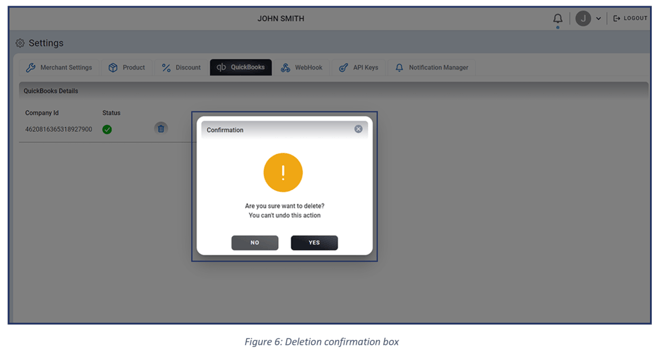
To remove an integrated QuickBooks ID, click the Delete icon. Confirm when prompted.
To re-establish integration, simply click Authenticate again and repeat the steps above.
Transaction Processing and Automatic QuickBooks Updates
Once QuickBooks integration is complete, transactions processed in the Envoy Business Systems portal will automatically sync to your QuickBooks account when the appropriate sync option is selected.
How to integrate Sale transactions with QuickBooks-
Navigate to the Virtual Terminal page.
-
During a sale, check the box Payment Sync in QB.
-
Once payment is processed, the transaction will automatically update in QuickBooks.
Syncing Recurring Payments
-
Go to the Recurring tab.
-
To sync this transaction with QuickBooks, Select Payment Sync in QB during the sale transaction process.
-
The sale transaction will automatically update in QuickBooks once the payment is processed.

How to integrate recurring payments with QuickBooks
-
Navigate to the Recurring tab.
-
Perform the recurring payment as usual.
-
During the payment process, select the ‘Payment Sync in QB’ checkbox to sync this recurring payment with QuickBooks.
-
The recurring payment transaction will automatically update in QuickBooks once processed.

How to integrate Refund transactions with QuickBooks
To integrate Refund transactions with QuickBooks, follow these steps:
- Navigate to the Refund tab.
- Process the refund transaction as usual.
- Select the ‘Payment Sync in QB’ checkbox during the refund process if you want this refund transaction to be synced with QuickBooks.
- The refund transaction will automatically update in QuickBooks once processed.

How to create & update an E-invoice & integrate with QuickBooks
To create or update invoices in QuickBooks and integrate them with E-Invoice, follow these steps:
- Navigate to the E-Invoice tab. You can create or update invoices in QuickBooks here.
- Select the ‘Create/Update invoice in QB’ checkbox during the payment process if you want the e-invoice to be synced with QuickBooks.

- The PayNow link generated can be used for email template feature available within QuickBooks.

-
Once the payment is processed, the transaction will automatically update in QuickBooks. All transactions will be reflected in your QuickBooks account.
-
To view them, log in to the QuickBooks platform and navigate to ‘Sales’ under ‘Invoices.’ Your deposited, paid, due, and overdue transactions will appear here.
How to generate a QuickBooks report
A QuickBooks report provides a comprehensive list of transactions synced with QuickBooks, specifically those conducted via the Virtual Terminal. Follow these steps to generate a QuickBooks report:
- Log in to the Envoy Business Systems portal with your credentials.
- Navigate to the 'Reports' section on the left navigation bar. Select the ‘QuickBooks Reports’ option from the list of options.

- The QuickBooks report page will appear, displaying all transactions synced with QuickBooks.
- Access details of individual transactions or view lists of transactions.

- To export transaction lists, click on the 'Export' option in the upper right corner.

- Choose to export in CSV or XLS format.

- After selecting and clicking ‘Export,’ your report will be automatically downloaded.
Video Resources
How to Sync Virtual & Card Transactions with QuickBooks |
How to integrate Card Transactions from the POS to Quick Books