Skip to content
English
  • There are no suggestions because the search field is empty.

Dejavoo QD - Connectivity & Comm Errors 

This guide helps resolve connectivity problems on Dejavoo QD terminals (QD2/QD4/QD5), covering quick checks, Wi-Fi and Ethernet troubleshooting, ping/self-tests, and provisioning checks, and steps to escalate if needed.

Common symptoms

  • Terminal shows a communication error or “Comm Error.”
  • No Wi-Fi or Ethernet network icon, or intermittent drops.
  • Transactions fail or time out while other devices on the same network work.
  • Terminal was working and then suddenly lost connectivity.

Before you start — information to collect

Ask for or record:

  • Terminal model and serial number.
  • Firmware / software version and whether the terminal was recently updated.
  • Whether this is a new installation (provisioned) or a used/previously deployed terminal.
  • Connection type (Wi-Fi, Ethernet, Cellular) and any recent network changes.

Important: If the terminal is newly installed and not provisioned, it may not be communicated until provisioning is completed. Always confirm provisioning before deep troubleshooting.  

Before you start — information to collect 

Ask for or record: 

  • Firmware / software version and whether the terminal was recently updated. 
  • Whether this is a new installation (provisioned) or a used/previously deployed terminal. 
  • Connection type (Wi-Fi, Ethernet, Cellular) and any recent network changes. 


Note: If the terminal is newly installed and not provisioned, it may not be communicated until provisioning is completed. Always confirm provisioning before deep troubleshooting. (See Dejavoo QD Comm Error

  1. Obtain the exact error message 
    1. If you cannot, attempt a test transaction to recreate the error. 
  2. Check physical hardware 
    1. Ensure Ethernet, power, and adapters are firmly connected; inspect for any cable or port damage. 
    2. For Wi-Fi, confirm that the terminal is in range within the wireless network. 
    3. For cellular, check that the SIM card is properly installed and undamaged. 
  3. Review device indicators: 
    1. Router/switch power lights should be solid; WAN/Internet lights should show active (steady or blinking green). 
    2. Ethernet ports used by the terminal should be lit. 
    3. On the terminal, check Wi-Fi or cellular indicators for connection status. 
    4. Unusual light patterns (flashing red, constant amber, or no lights) may signal a network or hardware issue that needs further review. 
  4. Power cycle the terminal:  
    1. Turn off the terminal, wait 10 seconds, then power it back on to reset the connection. Attempt a test transaction to ensure connectivity. 


Dejavoo QD Comm Error

  1. Confirm the terminal’s communication priority settings in the file (Aura AM CoreAD fields and the file’s common tab) ensure the three CoreAD fields specify the communication method the merchant intends to use (Wi-Fi or ethernet).
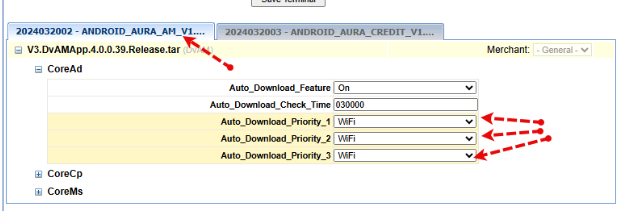
    Dejavoo Core AD
  2. You must also check these settings on the “common” tab in the credit card file.
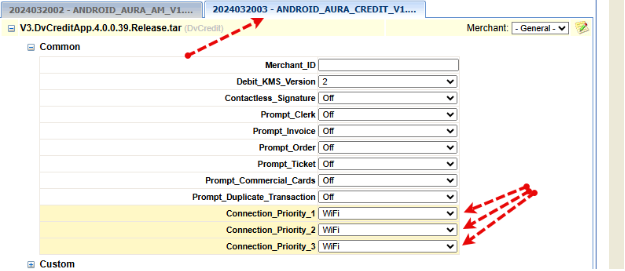
    Dejavoo Comm tab


WI-FI TROUBLESHOOTING
  1. From the main screen, press the cog icon to open Settings.
  2. Select WLAN from the list.
  3. Toggle Wi-Fi ON or OFF to ensure the wireless radio is enabled.
  4. Run Self-Check → Network → Wi-Fi → Test Wi-Fi to verify the radio and connection.
  5. If the Wi-Fi icon appears but connectivity fails, forget the network and reconnect (re-enter SSID and password).
  6. Confirm the terminal is set to DHCP (or that correct static IP settings were entered) during setup.
  7. Check SSID band compatibility — many terminals prefer 2.4 GHz. Ensure the access point supports that band.
  8. If SSID, password, or encryption changed recently, update credentials and reconnect.
Signal & Placement
Move the terminal within 3–10 ft of the access point to rule out weak signal or interference.
Check signal bars on the terminal. If performance improves near the AP, consider a Wi-Fi extender or repositioning the AP.
Tip: Band steering and weak RSSI can cause intermittent drops — test on a dedicated 2.4 GHz SSID when possible.
ETHERNET TROUBLESHOOTING
  1. Run Self-Check → Network → Ethernet → Test Ethernet to validate link and IP acquisition.
  2. Clear a stuck IP / force DHCP re-negotiation:
    1. Power off the device.
    2. Unplug the Ethernet cable.
    3. Power on and let it boot completely with no cable connected.
    4. Power off, plug in Ethernet, power on again, then attempt a transaction.
    This sequence clears the terminal IP and allows it to acquire a fresh address.
  3. Verify the Ethernet cable and switch port (test with a known-good cable/port).
  4. Confirm the switch/router grants an IP and permits outbound connections (no port blocking or strict ACLs).
PING / ADVANCED NETWORK TESTS
  1. From the main screen: Settings (cog) → Self-Check (wrench & screwdriver) → Advance → Ping Tool.
  2. Use a public IP such as 8.8.8.8 to test external connectivity; success indicates basic internet reachability.
  3. Save or note ping results and Self-Check outputs for escalation to network engineers or processor support.
If pings to public IPs succeed but transactions fail, investigate DNS or processor host reachability.
CELLULAR (GPRS/LTE) CONNECTIVITY
  • Ensure the SIM is active and provisioned by the carrier and that APN settings are correct.
  • When needed, use your Dejavoo steps to delete the cellular network, re-add it, and test again.
  • Battery life can impact connectivity — low or unstable power may cause the modem to drop signal or fail to initialize. Ensure the terminal is charged and not running on low battery.
Deleting Cellular Network on QD2 & QD4
1. From the Home screen, tap the Settings icon.
2. Scroll and select More.
3. Select Cellular Network.
4. Tap APN.
5. Touch the name of the active APN.
6. Tap the three-line (menu) icon and select Delete.
If cellular issues persist, test with a known-good SIM and confirm local carrier coverage.
FILE / PROVISIONING CHECKS
  1. Verify that communication priorities in the device file (Aura AM CoreAD) match the merchant's chosen network (Wi-Fi or Ethernet) and that the Common tab settings are correct.
  2. If the terminal is used/previously deployed, confirm it is properly provisioned; re-provision if necessary before escalating.
Misaligned CoreAD/Common priorities are a frequent cause of random "comm" errors — align them with the intended network.