.png?width=300&height=300&name=Untitled%20design%20(6).png)
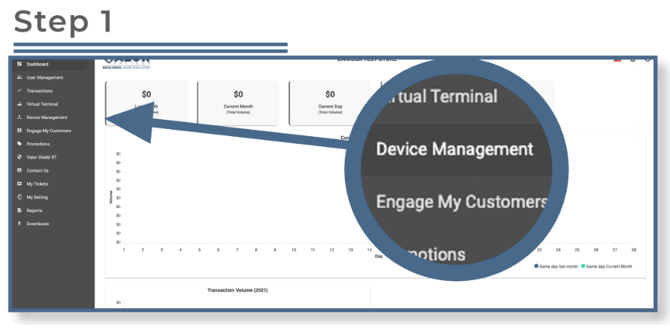
Select Device Management in the sidebar menu.
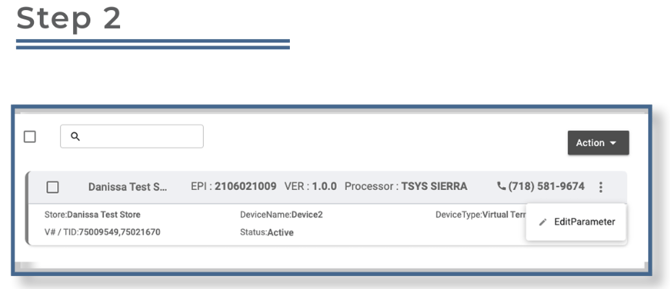
Locate the device you want to configure, select the ellipsis (⋯) on the top right of the device snapshot, then click on Edit Parameters.
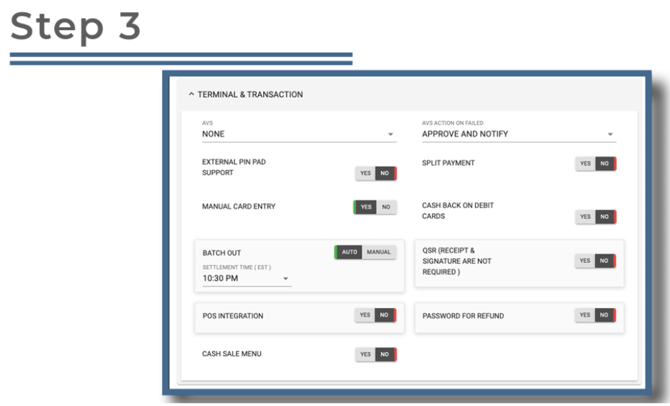
Expand the Terminal & Transaction section, then click on the dropdown for AVS.
-
None – AVS is off.
-
ZIP Only – AVS is enabled and verifies by ZIP code.
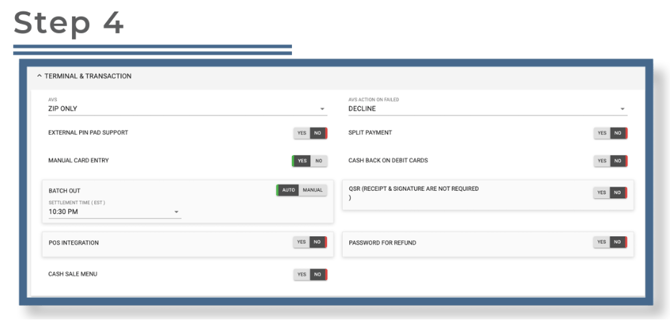
Choose whether you want the device to automatically decline any ZIP code mismatch or allow the merchant to approve or decline the transaction at the device level.
-
Decline Any ZIP Code Mismatch: When enabled, the device will automatically decline any transaction where the billing ZIP code entered by the cardholder does not match the ZIP code on file with the issuing bank. This provides the highest level of address verification security and helps prevent fraudulent transactions.
-
Allow Merchant to Approve or Decline: When selected, the device will prompt the merchant at the point of sale if a ZIP code mismatch occurs. The merchant can then choose to either approve or decline the transaction manually. This option provides flexibility when processing legitimate transactions that may have minor ZIP discrepancies.
After making parameter changes, perform a download on the device by pressing ★ > 6 > OK to apply the updates.