.png?width=300&height=300&name=Untitled%20design%20(6).png)
Overview
The A800 supports Wi-Fi and cellular network access. Wi-Fi access types available on the A800 include DHCP, Static IP, Manual Static IP and Manual Proxy. The device also supports dual-band Wi-Fi (2.4/5 GHz) and cellular (4G LTE) connectivity.
| Front View | Back View |
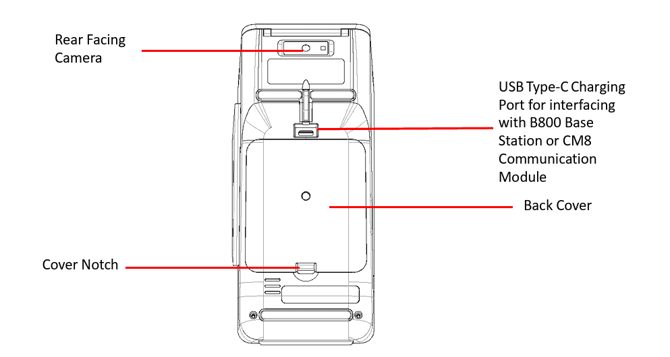
|
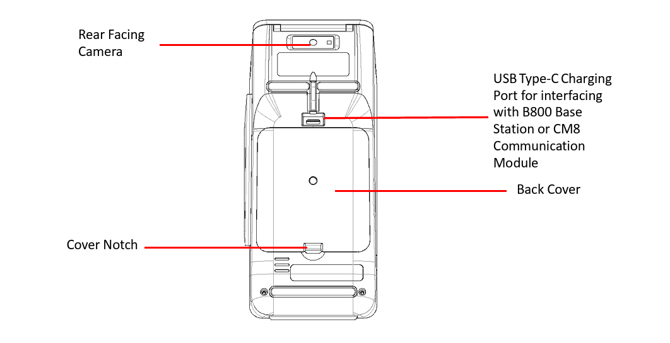
|
Common first steps (applies to all Wi-Fi modes)
-
Open Settings on the A800.
-
Select Network & Internet.
-
Slide the Wi-Fi toggle right to enable Wi-Fi.
DHCP (automatic IP)
DHCP lets the network automatically assign IP and other network settings.
Steps
- Settings → Network & Internet.
- Enable Wi-Fi (slide toggle).
- Select the desired Wi-Fi network from the list and enter the network password when prompted.
- Tap Connect.
(When the network is configured for DHCP, the DHCP server will provide an IP address and other parameters automatically.)
Static IP
Use Static IP when the device must keep a permanent IP address.
Steps
- Settings → Network & Internet.
- Enable Wi-Fi and select the desired network; enter the network password when prompted.
- Open Advanced options (or the Advanced drop-down) for the selected network and scroll to the IP settings.
- Under the IP Settings drop-down, select Static.
- Enter the following values:
- IP address
- Gateway
- Network prefix length (this is the subnet mask length)
- DNS 1 (primary DNS)
- DNS 2 (secondary DNS, optional)
- Tap Save to apply the static configuration.
Manual Static IP (hidden SSID / add network)
If the access point does not broadcast its SSID (hidden network), the A800 will not show the SSID in available network lists. In this case you must add the network manually and configure it as Static.
Steps
- Settings → Network & Internet.
- Enable Wi-Fi.
- Select Add Network.
- Enter the exact (case-sensitive) Network SSID.
- Select the correct Security type for the network (options include Enhanced Open, WEP, WPA/WPA2-Personal, WPA3-Personal, WPA/WPA2/WPA3-Enterprise, WAPI PSK, and WAPI Certificate).
- Open Advanced options and set IP settings to Static.
- Enter IP address, Gateway, Network prefix length, DNS 1, DNS 2, then tap Save to add the network.
References & further reading
- A800 Reference Guide v1.2 — Powering, rebooting, communications setup (DHCP, Static IP, Manual Static IP), and device specifications. See sections 4.3 Powering the Device ON/OFF, 4.4 Rebooting the Device, and 5 Communications Setup