.png?width=300&height=300&name=Untitled%20design%20(6).png)
Overview
This guide explains how to log in to the iPOS Pays portal, enable Virtual Terminal and Pin pad integration during merchant onboarding, create a TPN, enable Spin Cloud, and process a sale using a PIN pad through Virtual Terminal.
Login Instructions
|
|
Enable Virtual Terminal & Pinpad Integration During Merchant OnboardingTo enable CloudPOS Virtual Terminal and Pinpad functions during onboarding:
|
|
Creating a TPNFollow the steps below to create a Terminal Profile Number (TPN): |
|
Click Merchants.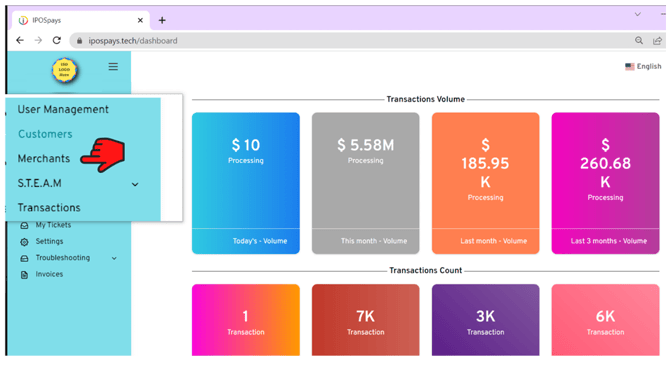
|
|
|
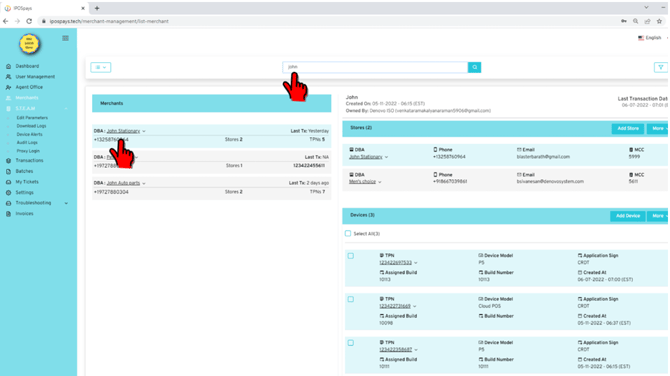
Enter the merchant's name in the search bar and select the merchant from the left panel.
|
|
|
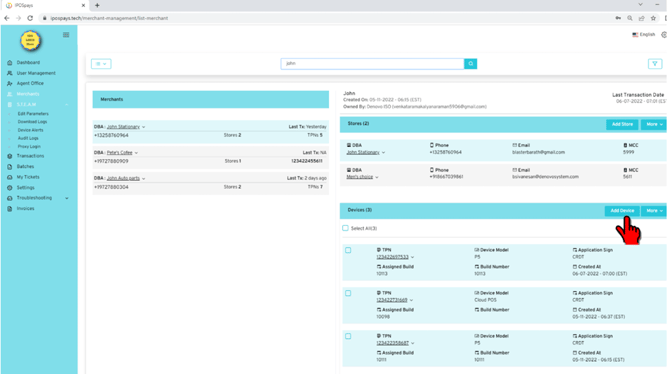
Click the Add Device button.
|
|
|
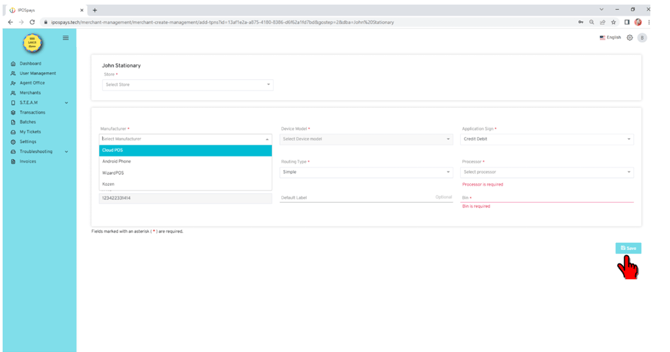
From the Select Manufacturer dropdown, choose CloudPOS.
|
|
|
Complete all remaining merchant details using the information on the VAR Sheet. Then Click Save.
|
|
Enabling Spin CloudOnce the TPN is created, follow these steps to enable Spin Cloud: |
|
|
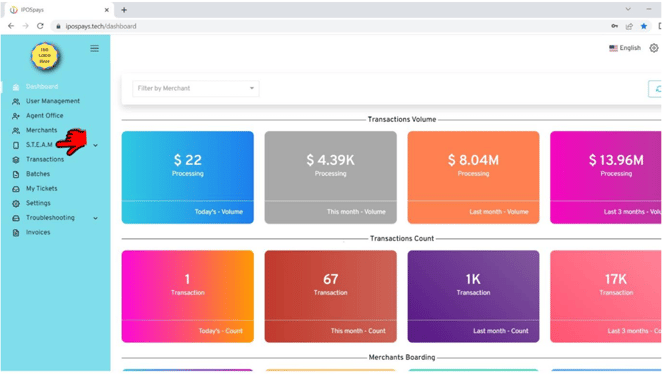
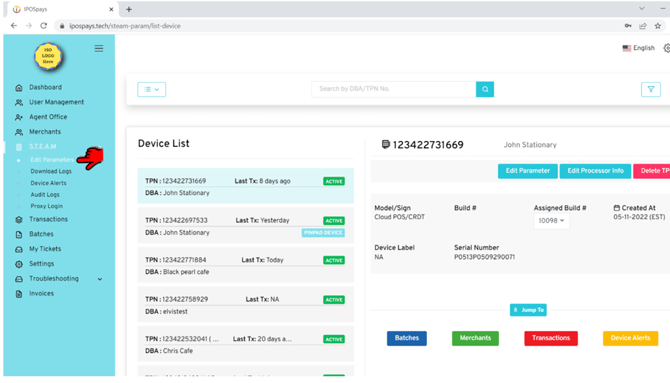
Click S.T.E.A.M.
|
|
|
Click Edit Parameters.
|
|
|
Enter the newly created TPN in the search bar and select it from the left panel. 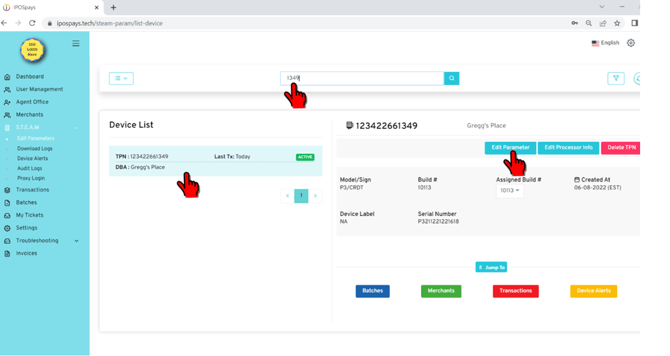
|
|
|
Click Edit Parameter. |
|
|
Go to the Integration section. 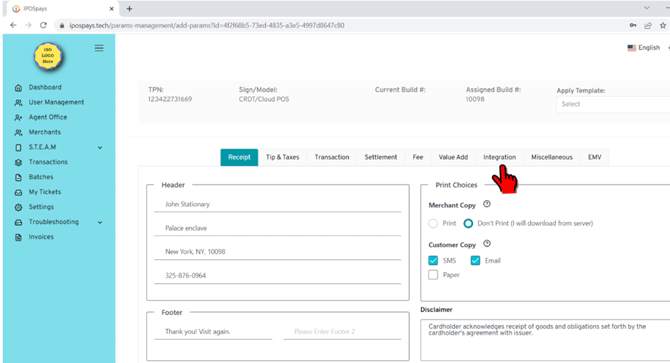
|
|
|
Select Spin. 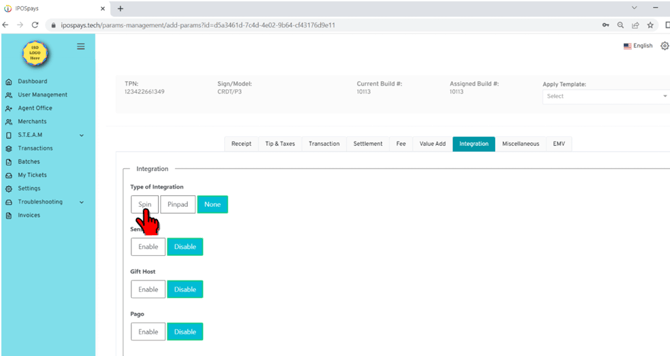
|
|
|
Under Spin Mode, select Cloud. 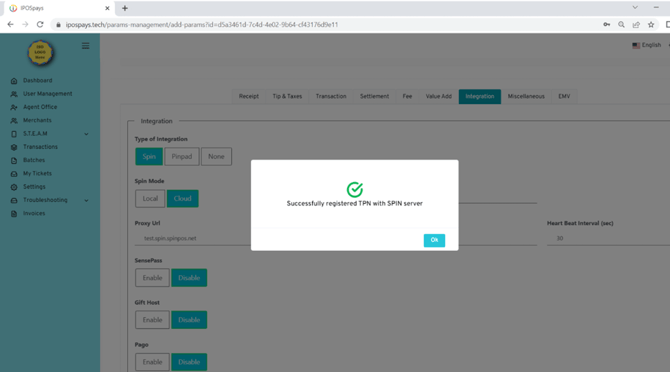
|
|
|
|
Using Pinpad for Virtual Terminal Sale |
|
|
Go to www.ipospays.com and log in. |
|
|
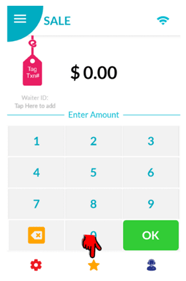
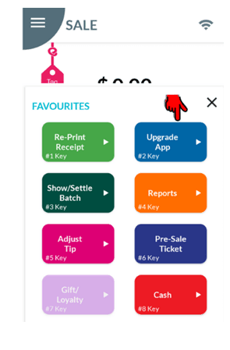
On the POS device, tap the Favorites icon. |
|
|
|
|
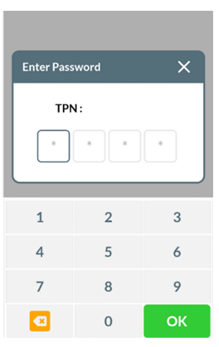
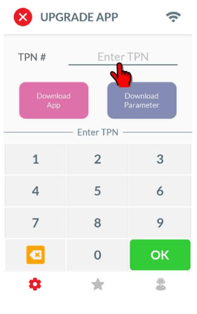
Enter your TPN password
|
|
|
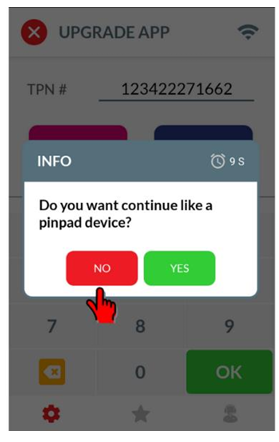
Enter the newly created CloudPOS enabled TPN. |
|
|
Click No. |
|
|
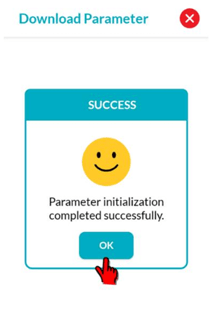
You will see the screen below. |
|
|
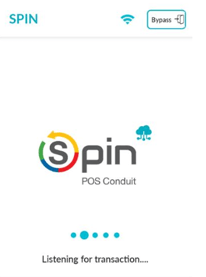
Spin screen will appear on POS. |
|
|
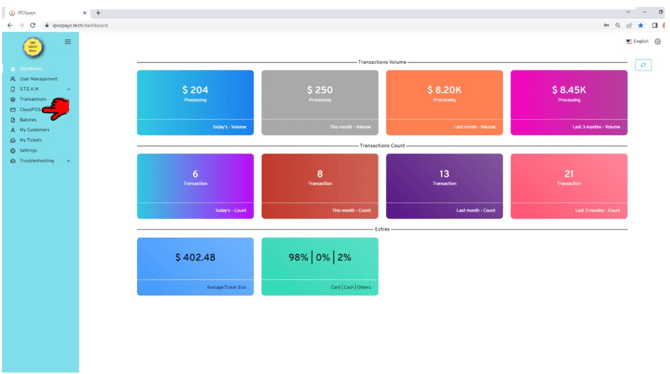
Login in and click CloudPOS.
|
|
|
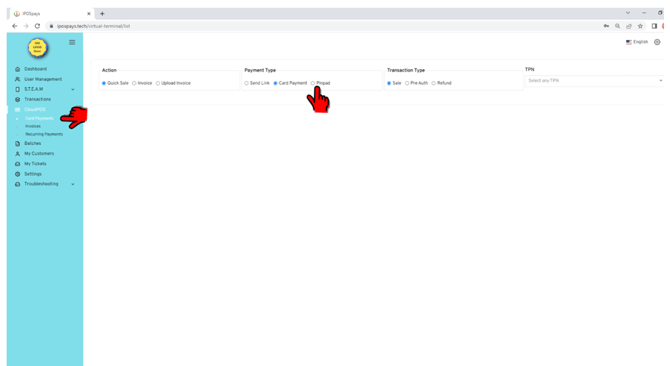
Click Card Payments and select Pinpad.
|
|
|
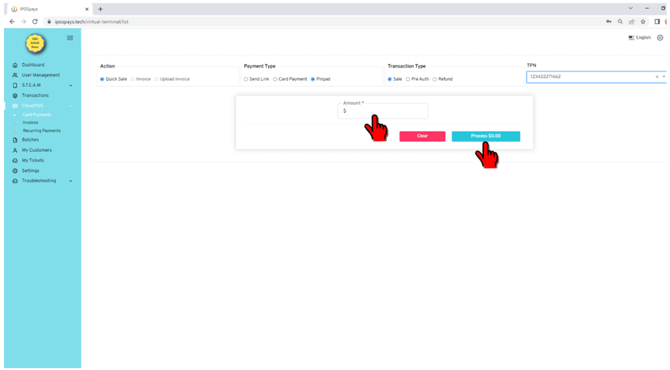
Enter the amount and select Process.
|
|
|
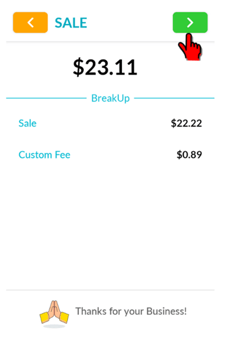
The sale will appear on POS and follow the standard transaction procedure
|
|