No Paper Mode (NPM) on PAX A-Series Devices – Missing “Sale” Option
Understanding No Paper Mode (NPM)
When “NPM” appears above the transaction amount on a PAX A-Series device, it means the terminal does not detect any printer paper. As a result, the normal Sale option may not appear, and merchants may only see the Function Menu.
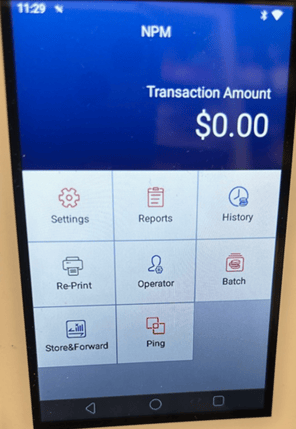
|
Common causes include:
|
How to Resolve NPM and Restore the Sale Option
- Confirm “NPM” Indicator
- Ask the merchant whether they see "NPM" displayed above the transaction amount.
- Verify Paper Status
- If NPM is displayed, ask whether paper is currently loaded in the device.
- If no paper is present, have the merchant insert a new roll, ensuring a small amount of paper feeds out from the printer slot.
- Reseat the Paper Roll
- If the device already has paper:
- Open the printer door.
- Lift the roll and reseat it securely.
- Pull a small amount of paper through the top slot before closing the lid.
Result
After the paper is correctly inserted or reseated, the NPM indicator should disappear. The device will return to normal functionality, and the Sale option will become available again.
-
Power Cycle the Device
If NPM remains after reseating the paper:
- Power off the terminal completely.
- Wait 10 seconds.
- Power it back on and check whether the NPM indicator clears.
-
Check for Obstructions in the Printer Compartment
- Remove the paper roll and inspect the printer cavity.
- Look for loose paper scraps, adhesive from labels, or debris.
- Clear any obstruction and reload the roll.
-
Ensure the Paper Is Installed Correctly (Thermal Side Out)
PAX terminals use thermal paper, which only prints on one side.
- Confirm the shiny thermal side is facing down toward the printer head.
- If unsure, perform a quick scratch test—scratching the coated side will leave a dark mark.
-
Inspect the Printer Door for Proper Closure
If the printer lid is not fully latched, the sensor may think paper is missing.
- Reopen and close the lid firmly until it clicks.
- Test a paper feed to ensure smooth movement.
-
Test the Feed Button
Have the merchant press the Paper Feed button.
- If paper advances, the printer mechanism is functioning.
- If not, reload the roll and try again.
-
Check for a Dirty or Misaligned Paper Sensor
The NPM sensor may fail if dust or residue is blocking detection.
- Gently blow air into the printer compartment to clear dust.
- Avoid using liquids or cleaners.
- If the sensor appears physically damaged, the device may require repair or replacement.
-
Verify Firmware or App Updates
Outdated software may cause printer recognition issues.
- Ask the merchant to check for system or app updates on the terminal.
- Update if prompted and re-test.
-
Perform a Test Transaction
After completing the above steps:
- Run a low-dollar test transaction.
- Confirm the Sale option is available and the device prints correctly.