.png?width=300&height=300&name=Untitled%20design%20(6).png)
How to turn off receipts in Z Series/QD Series File
Locate the terminal File
- Search for the Z Series or QD Series terminal in Dejavoo/STEAM.
- Open STEAM (Dejavoo’s system).
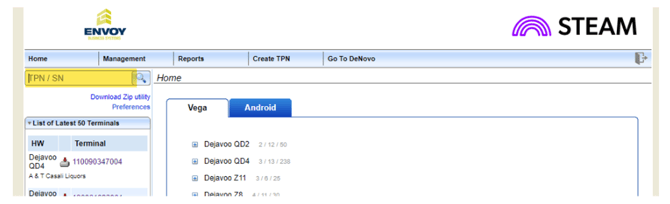
- Enter the TPN (Terminal Profile Number) or SN (Serial Number), then click the magnifying glass or press Enter.
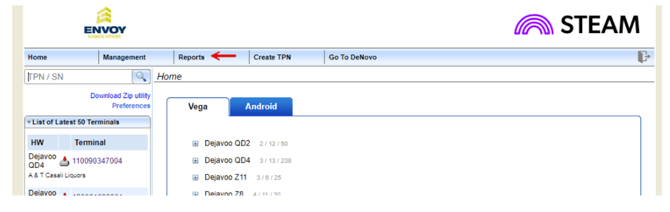
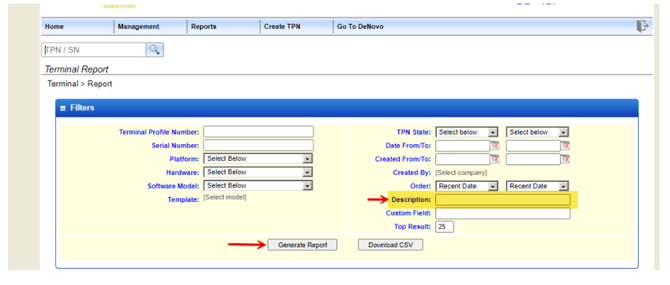
- You may also search by DBA:
- Click Reports.
- Enter the DBA in the Description field and click Generate Report.
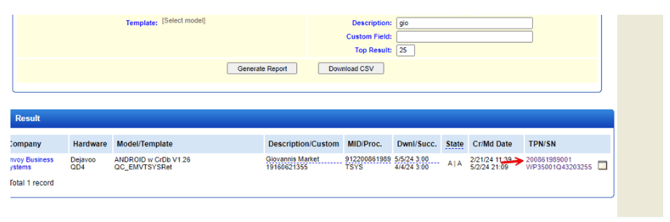
- From the report, click the terminal’s TPN/SN to open the file.
Update Receipt Settings
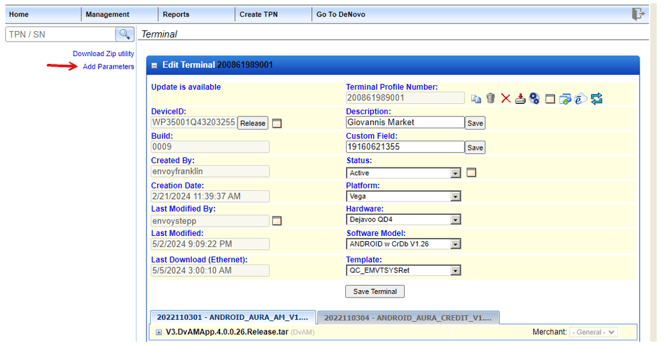
Click Add Parameters.
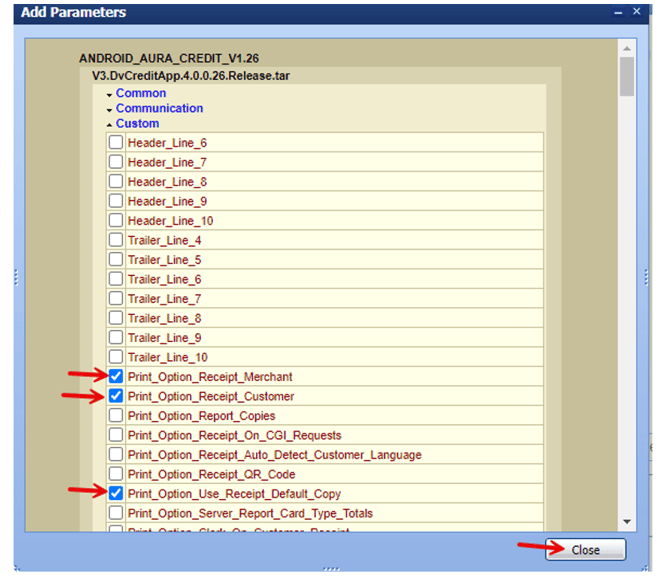
Under Custom, check the following options:
- Print_Option_Receipt_Merchant
- Print_Option_Receipt_Customer
- Print_Option_Use_Receipt_Default_Copy
Then click Close.
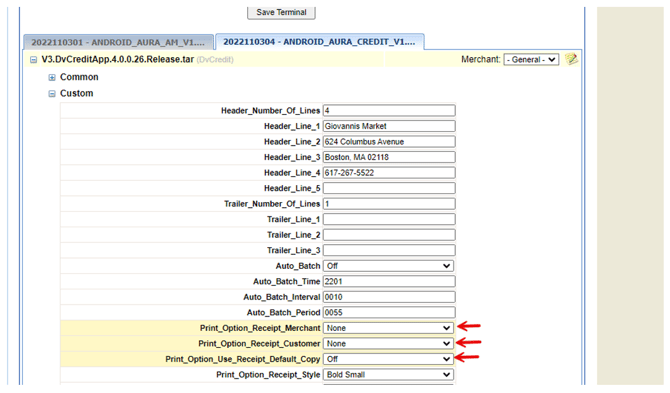
Go to the second tab, ANDROID_AURA_CREDIT_V1…, open Custom, and set the three parameters to:
- None
- None
- Off
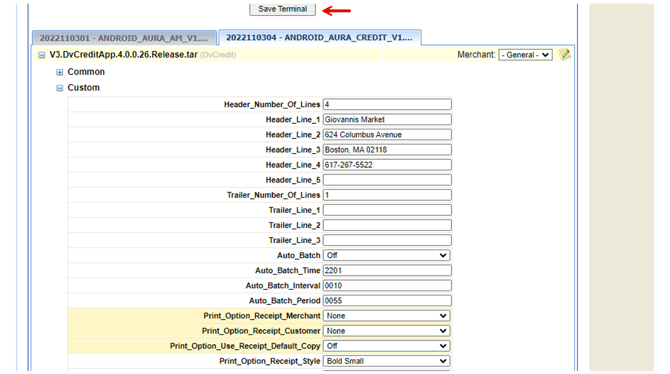
Click Save Terminal, then click Save again to confirm.
Complete a Partial Download
A partial download is required for the terminal to apply the changes.
Z Series Terminals
Use this link to complete a partial download:
Dejavoo | Z Line Download Guide
To complete a Partial Download on QD series:
- Open the Aura App (home screen with colored blocks).
- Tap the hamburger menu (three lines) in the lower-left corner.
- If prompted for a Manager PIN, enter 1234.
- Select Utility.
- Select Software Download.
- Select Connect.
- Select Network.
- Select Partial.
- Confirm the pre-filled TPN when prompted. The software download will begin.