.png?width=300&height=300&name=Untitled%20design%20(6).png)
When to use each method
-
Valor Terminal (on-site) — Use when the merchant is at the terminal and the original pre-auth was taken on that device.
-
Valor Portal (online) — Use when the transaction appears in the merchant’s online Valor portal (for example, remote pre-auth or when merchant cannot access the device).
Settle a pre-auth from a Valor terminal
Before you start
-
Have the transaction number (Tran #) or the card last 4 digits available.
-
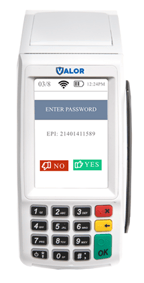
If prompted for the terminal password, use the last 4 digits of the EPI.
|
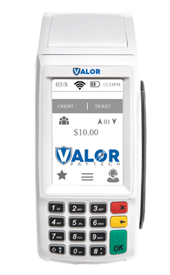
Tap the touchscreen until the transaction type shows Ticket (use the touchscreen to change transaction type).
|
 |
|
Enter the password on the device
|
 |
|
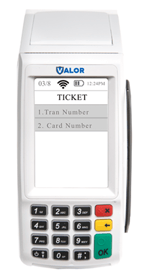
Choose how to look up the pre auth:
|
 |
| Enter the Transaction Number and press OK on the touch screen or the OK button on the keypad. | 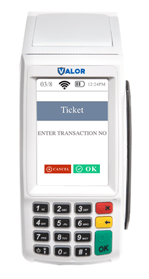 |
| Enter the Last 4 Digits of the Card and press OK on the touch screen or the OK button on the keypad | 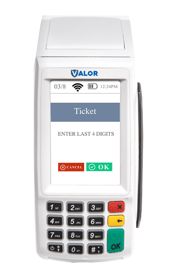 |
| Confirm that the transaction on the screen matches the original Pre auth transaction that was performed. | 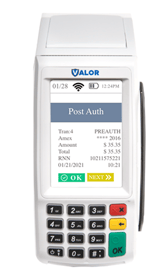 |
|
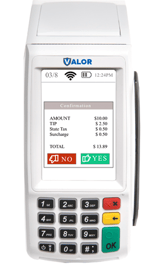
Once the tip and tax is added to the transaction, you can confirm the numbers and finalize the transaction. |
 |
|
|
Terminal shows a successful captured / sale transaction. Merchant can print or email the receipt.
Settle (capture) a pre-auth in the Valor portal
Before you start
-
Log into the merchant’s Valor portal with appropriate access.
-
Know the transaction date, transaction number, or card last-4 to search if needed.

- Click Transactions in the portal sidebar to view live transactions

- Select the Filter button (to the left of Action). Open the transactions filter and choose AUTH to show all pre-authorized transactions; click Search.

- Now you will see all of your preauthorized transactions.
-
Select the ellipsis (⋯) in the top-right of the transaction snapshot and choose Capture from the dropdown.
- Note that all of your transaction will say “Credit Auth” at the top of the transaction snapshot.

-
- You’ll be prompted to confirm the capture. Before confirming you can edit the sale amount, and update email and phone number if needed. Make edits and confirm to capture the transaction.
The portal converts the AUTH to a captured sale and shows the updated transaction status. Merchant can send receipts from portal.