.png?width=300&height=300&name=Untitled%20design%20(6).png)
Press Play to learn more about Valor E-Invoice
Send an Invoice in Valor Portal Instructions
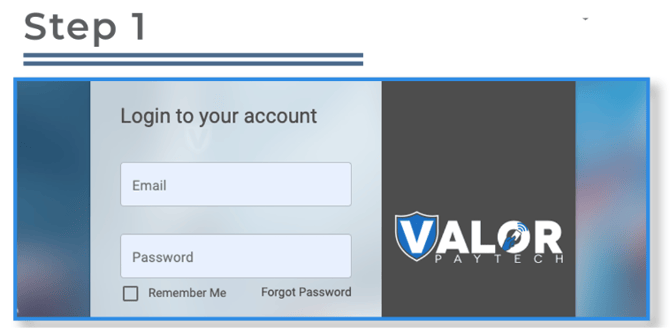
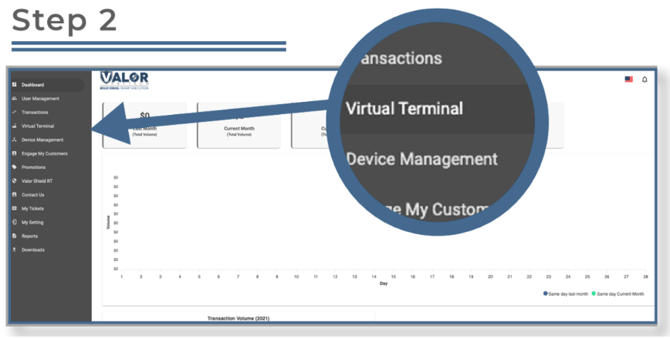
Select Virtual Terminal in the side bar menu.
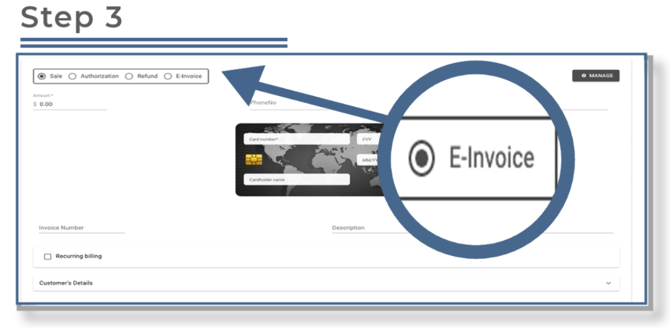
Select E-Invoice from the transaction options.
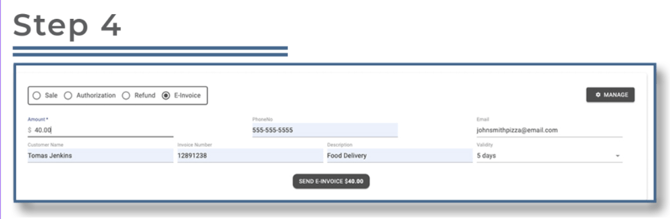
Enter the invoice amount and either the customer’s phone number or email address. One of these is required for the customer to receive the E-Invoice. Once these details are entered, the Send E-Invoice button will become active.
-
Descriptor: The label that appears on the customer’s card statement.
-
Validity: The number of days the E-Invoice link will remain active (default is 5 days, maximum is 30 days).
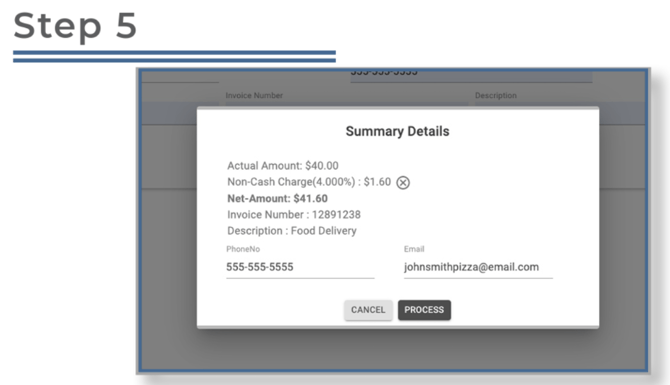
After reviewing the details, click Process. A confirmation screen will appear where you can verify transaction details before the E-Invoice is sent.
You can optionally remove the non-cash charge by clicking the “x” beside the fee.
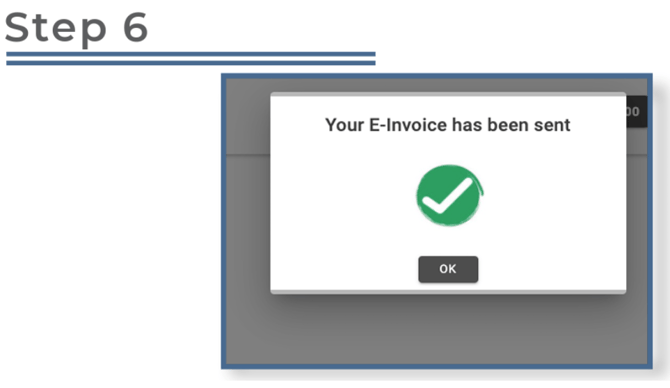
Once processed, click OK to return to the main screen and continue with other transactions.
To review or manage E-Invoices, click Manage in the upper-right corner of the E-Invoice screen. From here, you can view transaction history and manage existing invoices.
Tip: The customer’s credit card information is tokenized and stored securely. For future transactions, simply enter the customer’s phone number or email address to recall their payment details.
Valor E-Invoice Demo Video
Press Play to watch a demo of E-Invoice in Valor Portal