.png?width=300&height=300&name=Untitled%20design%20(6).png)
How to Manage the Merchant’s Valor Account
There are two ways to manage a merchant’s Valor account:
- Activate or Deactivate a Valor Account:
Use this option when the merchant is no longer using Valor devices or when reopening a previously deactivated account. - Enable or Disable Individual Hardware:
Use this option when a merchant has multiple devices and needs to deactivate one that is no longer in use or reactivate a specific device for future use.
Activate/De-Activate Valor Account
Use the Activate or Deactivate a Valor Account option to manage a merchant’s overall account when they stop using Valor devices or need to reopen a previously deactivated account.
- Log into Valor Portal.
- Select Merchant Manager.
- Enter the merchant’s DBA Name into the Search bar.
- Once the account is listed, select the three dots (⋮) on the right-hand side of the account.

- Select Activate or Deactivate.
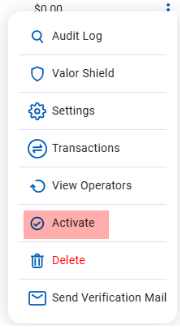
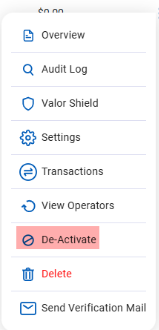
- Review for Green Checked Status
 or Red Dashed Status
 for the account
 - The devices will automatically be switched to Active or De-Active Status
- Active Status - The Equipment will need to be updated. Have the merchant press ★ > 6 > Enter on the terminal.
- De-Active Status – No further action is required on the terminal once deactivated.
HubSpot 
- Navigate to HubSpot.
- Open the merchant account and select the Equipment Tab.
- Click on the Deal Name for the device you just enabled or disabled.

- Change the deal stage to Dead (Disabled) or Live (Enabled) Then Save.
Create a Task

- Create a Task for the Billing Department by selecting Task at the top of the deal, located beneath the device's serial number.

- Label Task as Correct Software Billing and complete the following steps:
- Set a reminder for 1 month.
- Add tasks to the billing Queue.
- Under Activity, assign it to KJ Moore.
- Enter detailed instructions:
- For Enabling equipment:
- Billing I have enabled this TID please adjust the billing to start on Feb 1, 2025 (calculated based on equipment billing being a month behind this was entered on December 26 so will not be billed until Feb 1)
- For Disabling equipment:
- Billing I have disabled this piece of equipment please adjust the billing to start on Feb 1, 2025 (calculated based on equipment billing being a month behind this was entered on December 26 so will not be billed until Feb 1)
Enable/Disable
Use the Enable or Disable Individual Hardware option to manage specific devices when a merchant has multiple terminals, deactivating those no longer in use or reactivating hardware for future transactions.
- Log into the Valor Portal.
- Select Merchant Management.
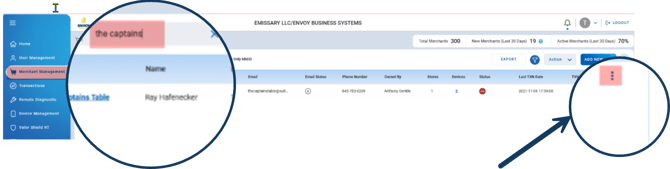
- Enter the merchant’s DBA Name into Search bar.
- Click on the DBA Name to open the account.

- Click the three dots (⋮) to the right of the equipment.
- Select Edit.
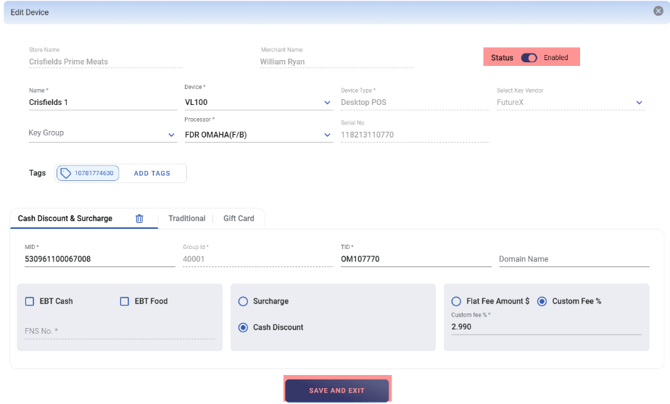
- Under Status, toggle to either Enabled or Disabled.
- Click Save and then Exit.
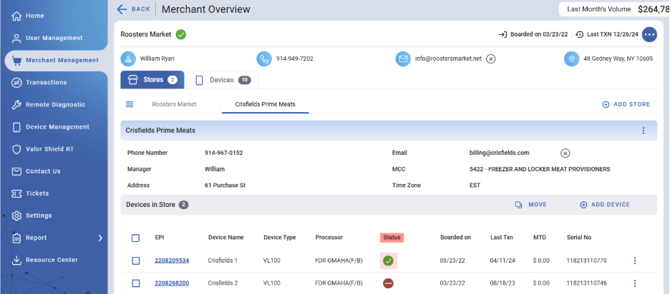
- Verify the device status: a Green Check Status
 indicates enabled, or Red Dashed Status
  indicates disabled for the machine
- If Enabling: Have the merchant press ★ > 6 > Enter on the terminal.
- If disabling: No further action is required on the terminal.
HubSpot

- Navigate to HubSpot.
- Open the merchant account and click on the Equipment tab.
- Select the Deal Name for the device you just enabled or disabled.
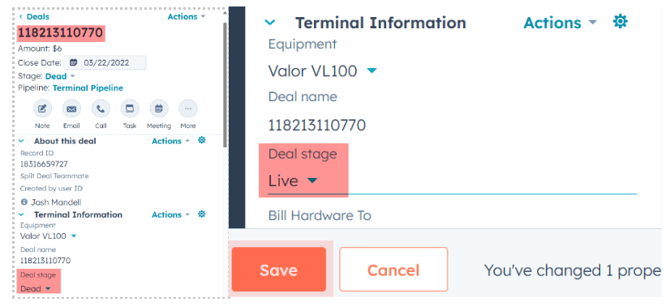
- Change the deal stage to Dead (Disabled) or Live (Enabled) Then Save
Create a Task
- Create a Task for the Billing Department by clicking Task at the top of the deal, located below the devices serial number.
- Label Task as Correct Software Billing and complete the following steps:
- Set a reminder for 1 month.
- Add task to the billing Queue.
- Under Activity, assign to KJ Moore.
- Enter detailed instructions:
- If enabling Equipment:
- Billing I have enabled this TID please adjust the billing to start on Feb 1, 2025 (calculated based on equipment billing being a month behind this was entered on December 26 so will not be billed until Feb 1)
- If disabling equipment:
- Billing I have disabled this piece of equipment please adjust the billing to start on Feb 1, 2025 (calculated based on equipment billing being a month behind this was entered on December 26 so will not be billed until Feb 1)