.png?width=300&height=300&name=Untitled%20design%20(6).png)
Press Play to Watch Video
Instructions
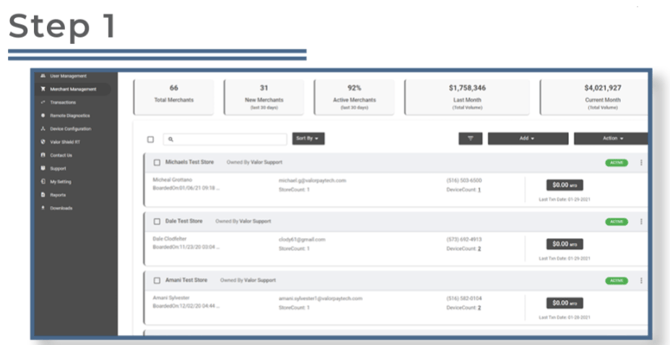
Select Merchant Management from the sidebar menu. Click on Add and select Full Board. This option allows you to board multiple stores and devices under one merchant account.
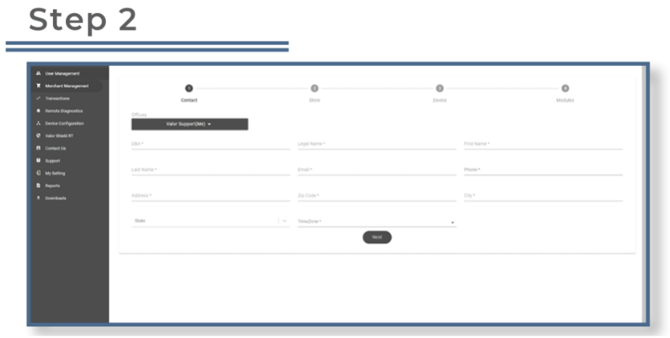
Enter the merchant or business owner’s contact information in the Contact section. Once all fields are completed, click Next.
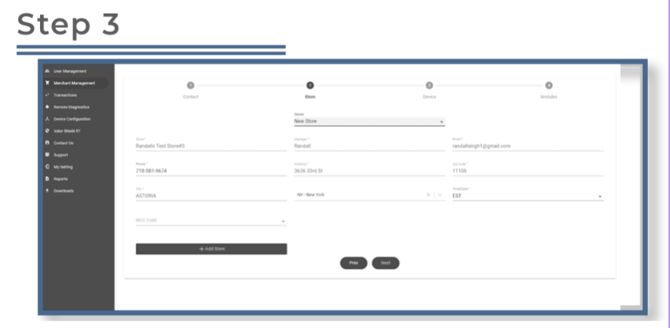
Most details in this section will automatically populate from the Contact section. You will only need to enter the MCC Code. When finished, select Add Store to proceed to the Devices section.
Note: The MCC Code must match the SIC Code from the VAR sheet. If they do not match, the merchant will not be able to perform transactions.
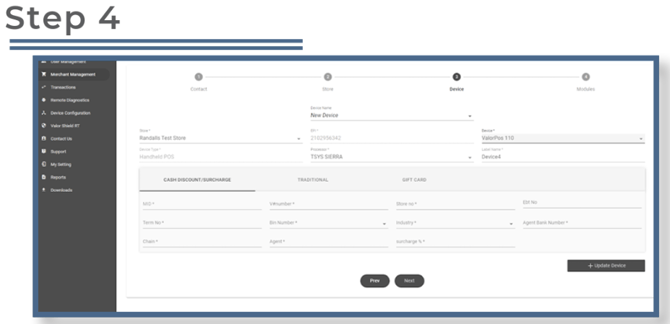
Select the device type and processor. Enter the VAR sheet information exactly as provided. Double-check that all details are correct
Incorrect entries will cause a “Host Profile Not Configured Properly” error during transactions.
When done, click Next.
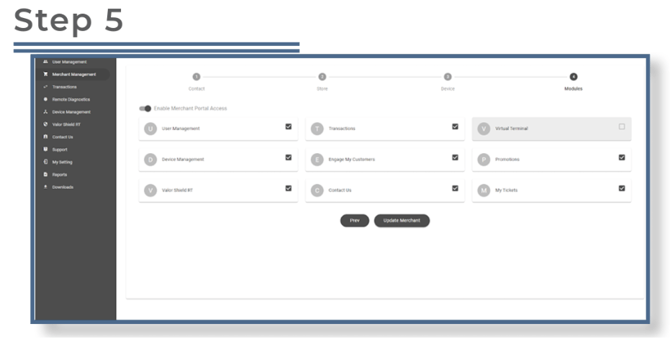
Choose the Modules you want the merchant to have access to, then click Next.
The merchant will receive an email and text message with a link to create their password and access their account.
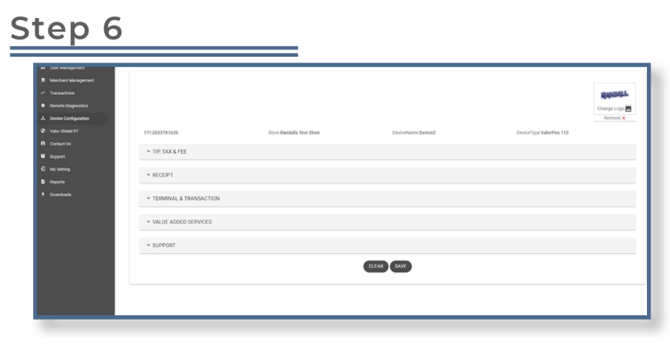
Once the merchant is boarded, go to Device Management to set up device parameters. Here, you can configure:
-
Surveys and additional inputs
-
Support contact numbers
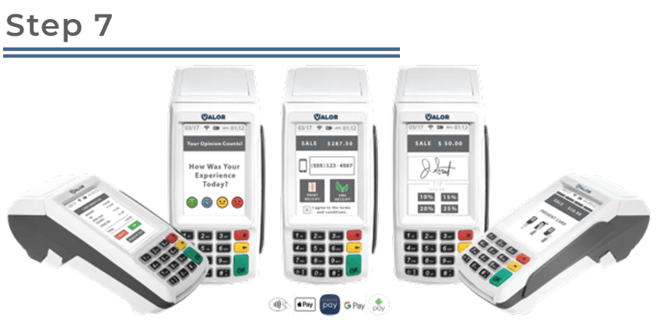
Setting Up the Device for Deployment
-
Power on the device.
-
Select Yes when prompted for DHCP.
-
Connect the device via Wi-Fi, Ethernet, dial connection, or GPRS SIM card.
-
Enter the EPI to begin Remote Key Injection and press OK.
-
Run a test transaction and deploy the device with the receipt left in the printer.