.png?width=300&height=300&name=Untitled%20design%20(6).png)
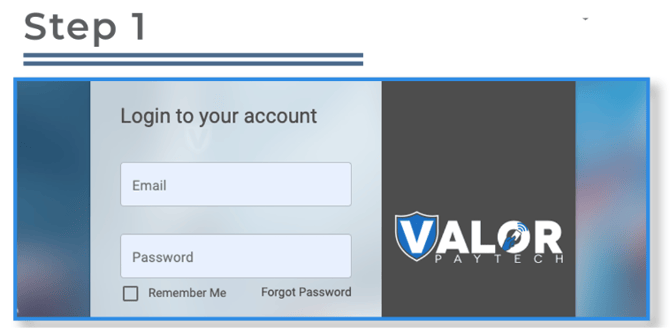
Go to www.online.valorpaytech.com and enter your login credentials.
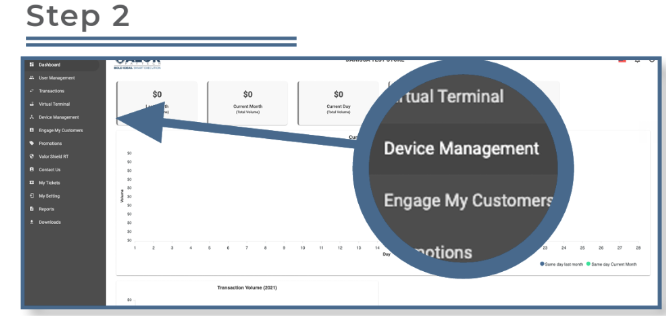
From the sidebar menu, select Device Management.
- Use the search box to locate the device that requires parameter updates.
- You can search by EPI, merchant name, or device name.
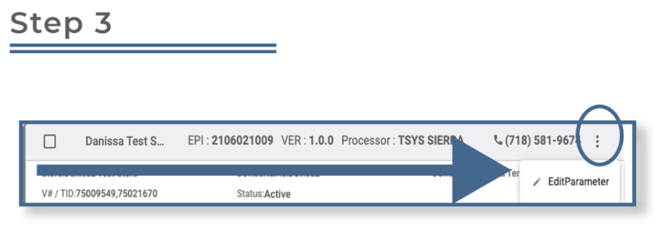
- Once the device appears, select the ellipsis (⋮) on the top right of the device snapshot, then click Edit Parameters.
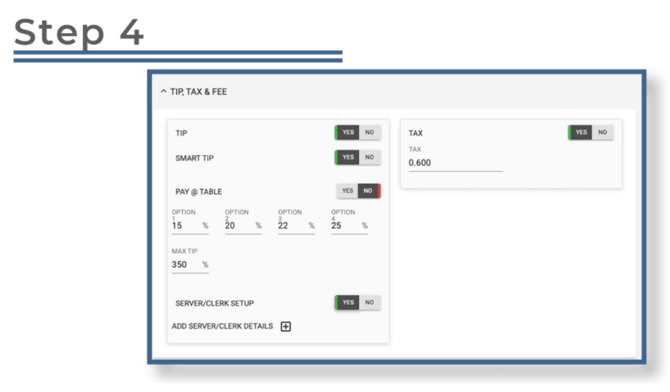
In the Tip, Tax & Fee section, you can configure settings such as tip options, server/clerk setup, and tax rate.
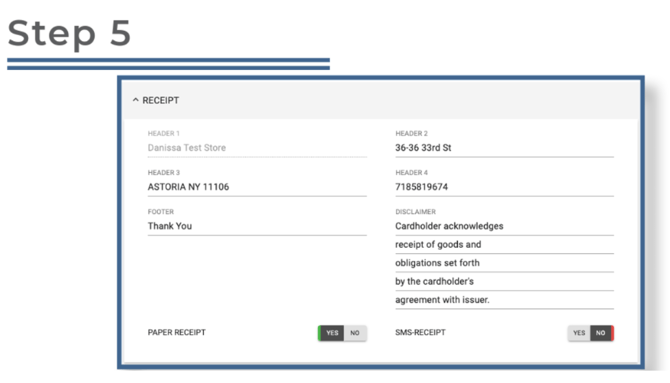
In the Receipt section, you can customize receipt headers and footers, the disclaimer, and toggle paper or SMS receipts on or off.
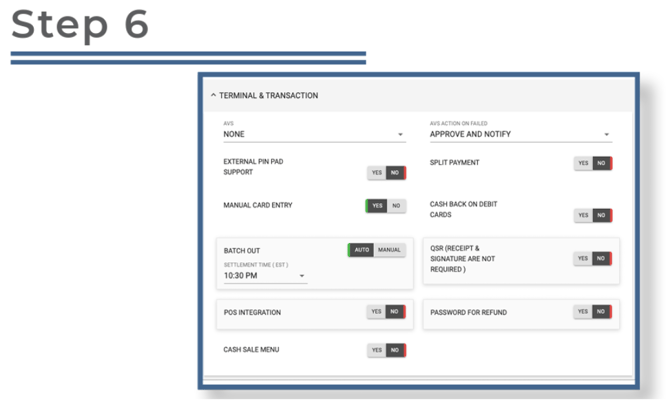
In the Terminal & Transaction section, you can manage key settings such as:
- Address Verification Service (AVS)
- PIN pad activation
- Manual card entry
- Automatic or manual settlement
- POS integration
- Cash sale menu
- Split payment options
- Cash back
- Quick Service Restaurant (QSR) mode
- Refund password requirements
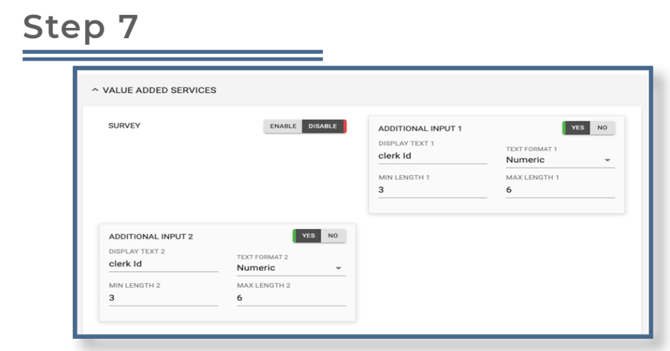
In the Value-Added Services section, you can enable features such as the customer survey (four emoji feedback) and additional inputs (for server IDs, invoice numbers, etc.).
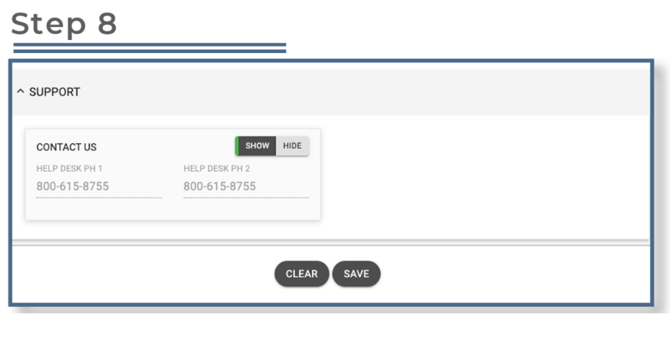
In the Support section, you can add your support phone number. This number will display on the terminal when the merchant presses the Call Me icon.