.png?width=300&height=300&name=Untitled%20design%20(6).png)
Portal Functionalities
The Valor Portal allows merchants and ISOs to efficiently manage fleet card transactions. Users can configure fuel products, define product categories, and monitor fleet inventory. The streamlined system ensures all fleet-related activities align with merchant operations.
Fleet Onboarding in the Valor Portal
1. Login to the Valor Portal
-
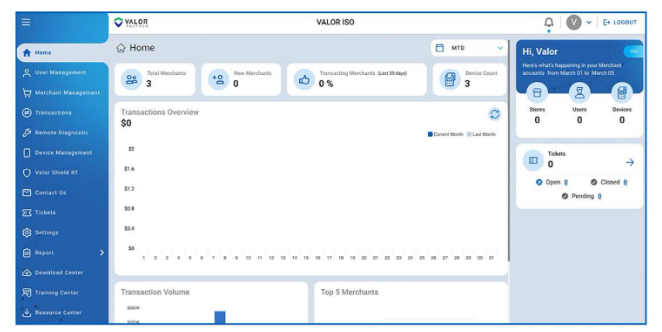
ISOs log in using their assigned credentials.
-
Once logged in, the homepage displays key metrics including merchant count, device status, and transaction overview.
2. Enabling Fleet Transactions for New Merchants

-
During merchant onboarding, navigate to Modules in the Valor Portal.
-
Enable the Fleet option to activate fleet transaction capabilities for that merchant.
-
Click Save to apply the changes.
3. Viewing Fleet Merchants
-
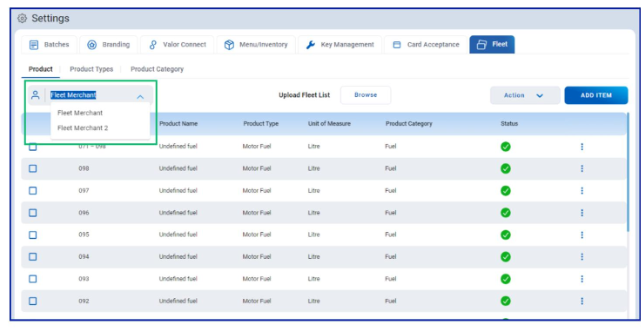
Go to Settings → Fleet to access merchant fleet details.
-
ISOs can view and manage fleet-related products by exploring:
-
Products
-
Product Types
-
Product Categories
-
-
Select the desired merchant to review their specific configurations.
POS Functionalities
Fleet Card functionality enables payment processing for fleet and fuel-related transactions directly through Valor POS terminals such as VL500 and VL550.
Performing Fleet Transactions with POS Terminals
1. Select Fuel Type
-
On the POS terminal, tap the Fuel icon.

-
Choose the appropriate fuel type from the displayed list.
-
Fuel options correspond to the products configured in the Valor Portal.
-
Keep product listings updated to ensure correct pricing and availability.
2. Select Product or Service

-
After choosing the fuel type, select additional Service or Store products as needed.
-
Examples include vehicle maintenance services or in-store purchases.
-
Products can be selected from the list or entered by product code.
3. Enter Transaction Details

-
Input transaction specifics:
-
Quantity
-
Pricing
-
Discounts or promotions
-
-
Review the summary on the POS terminal and confirm all details before proceeding.
4. Vehicle Verification
-
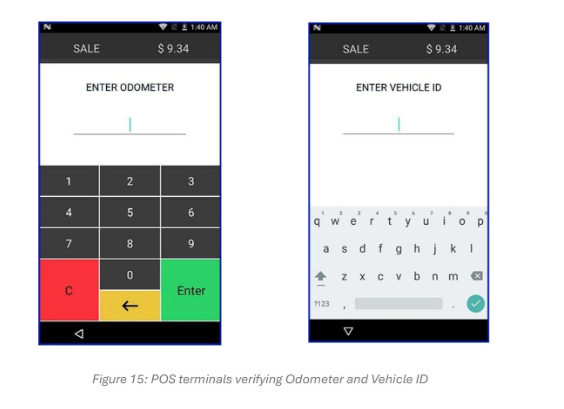
The terminal prompts for vehicle information to validate the transaction:
-
Odometer Reading
-
Vehicle ID
-
Driver Number
-
User ID
-
-
This ensures accuracy and links the payment to the correct vehicle.

-
If discrepancies are detected, the system will prompt for adjustments.
