.png?width=300&height=300&name=Untitled%20design%20(6).png)
Dejavoo Z8 EMV Retail with Dual Pricing QRG
Dejavoo Z8
|
|
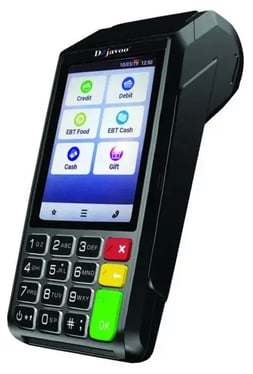
IMPORTANT: When the device is idle, it will display Credit and Sale. To change transaction type, press the
⬅ key until the preferred transaction type appears. To change payment type, use the ↑/↓ arrow keys to
select between the payment types. In addition to the payment options, you can access the Services Menu with the F1 key.
CREDIT CARD SALE
- Enter the Sale Amount and press Ok.
- From the multi pricing screen, select the payment method using the ↑/↓ arrows and press Ok on the keypad.
- A confirmation prompt with fee will pop-up. Conditional on the terminal's configuration.
- Tap, swipe or insert chip card. If required (debit), enter PIN number.
- If prompted, confirm the Sale Amount by pressing F2 (YES) or F4 (CANCEL). Conditional on the terminal's configuration.
- The transaction is processed. Sales receipt will print with details of the transaction.
DEBIT SALE
- Use the ↓ arrow key to select Debit on your terminal home screen and press Ok.
- Press Ok to select Sale.
- Enter the Sale Amount and press Ok.
- Tap (contactless only), swipe or insert chip card.
- If prompted, confirm the Sale Amount by pressing F2 (YES) or F4 (CANCEL). Conditional on the terminal's configuration.
- Cardholder enters PIN on terminal or PIN Pad and presses Ok.
- The transaction is processed. Sales receipt will print with details of the transaction.
MANUALLY ENTERED CREDIT SALE
- Enter the Sale Amount and press Ok.
- From the multi pricing screen, select the payment method using the ↑/↓ arrows and press Ok.
- A confirmation prompt with fee will pop-up. Conditional on the terminal's configuration.
- When the prompt to insert card appears, press Ok.
- Manually enter Card #.
- Follow the CNP prompts (input exp. date, ZIP code, etc). Conditional on the terminal's configuration.
- The transaction is processed. Sales receipt will print with details of the transaction.
CREDIT CARD RETURN
- Press the ⬅ key until Return appears.
- Enter the Return Amount and press Ok.
- Confirm the return amount by pressing F2 (YES) or F4 (CANCEL).
- If prompted, enter Manager Password. (1234 default)
- Tap (contactless only), insert, swipe or manually enter card number.
- The transaction is processed. Return receipt will print with details of the transaction.
VOID CREDIT TRANSACTION
- Press the ⬅ key until Void appears.
- Enter Void Amount and press Ok.
- Confirm void amount by pressing F2 (YES) or F4 (CANCEL).
- If prompted, enter Manager Password. (1234 default)
- Tap (contactless only), insert, swipe or manually enter card number.
- Confirm void amount by pressing F2 (YES) or F4 (CANCEL).
- The transaction is processed. Void receipt will print with details of the transaction.
VOID BY TRANSACTION NUMBER
- Press F1 to access the Services menu.
- Use the ↑/↓ arrow keys to highlight Favorites and press Ok.
- Use the ↑/↓ arrow keys to highlight Void CR/DB Trans and press Ok.
- Use the ↑/↓ arrow keys to select By Transaction # and press Ok.
- Enter Transaction # to be voided and press Ok.
- If prompted, confirm the Void Amount by pressing F2 (YES) or F4 (CANCEL). Conditional on the terminal's configuration.
- If prompted, enter Manager Password. (1234 default)
- The void is processed. Void receipt will print with details of the transaction.
REPRINT RECEIPT
- Press F1 to access the Services menu.
- Use the ↑/↓ arrow keys to highlight Favorites and press Ok.
- Use the ↑/↓ arrow keys to highlight Reprint CR/DB Receipt and press Ok.
- If prompted, enter Manager Password. (1234 default)
- Use the ↑/↓ arrow keys to highlight desired option (Last, By Transaction # or By Card Number) and press Ok.
- Transaction receipt prints.
CALL ME FEATURE (MUST BE ENABLED)
- Press the F1 key.
- Use the ↑/↓ arrow keys to highlight Managed Services and press Ok.
- Use the ↑/↓ arrow keys to highlight Call Me and press Ok.
- The terminal sends notification to the help desk and you will receive a call back from a representative with assistance.
TURN CLERK PROMPT ON/OFF
- Press F1 to access the Services menu.
- Use the ↑/↓ arrow keys to highlight Core and press Ok.
- Use the ↑/↓ arrow keys to highlight Applications and press Ok.
- Use the ↑/↓ arrow keys to highlight CREDIT/DEBIT/EBT and press Ok.
- Use the ↑/↓ arrow keys to highlight Setup and press Ok.
- If prompted, enter Manager Password. (1234 default)
- Use the ↑/↓ arrow keys to highlight Trans Prompts and press Ok.
- Press Ok to select Clerks.
- Press Ok to select Prompt.
- Use the ↑/↓ arrow keys to highlight desired option and press Ok.
- To return to the home screen press the key ❌ 3 times.
SETTLE DAILY BATCH
- Press F1 to access the Services menu.
- Use the ↑/↓ arrow keys to highlight Settlement and press Ok.
- Use the ↑/↓ arrow keys to highlight Settle Daily Batch and press Ok.
- If prompted, enter Manager Password. (1234 default)
- Terminal communicates with the host.
- Settlement Report prints.
PRINTING REPORTS
- Press F1 to access the Services menu.
- Use the ↑/↓ arrow keys to highlight Core Menu and press Ok.
- Use the ↑/↓ arrow keys to highlight Reports and press Ok.
- Use the ↑/↓ arrow keys to highlight desired report type (Daily Report or Summary Report) and press Ok.
- If prompted, enter Manager Password. (1234 default)
- Report prints.
POWER CYCLE TERMINAL
- Press and hold the OK key on the keyboard and release once terminal starts to reboot.
WIRELESS ICONS
- Wi-Fi icon will blink when not connected. It will remain static when connected successfully.
- Battery charge indicator.
- SIM status indicator.
Downloadable References
Note: Looking to better understand the Dejavoo Z Line and its capabilities? All Quick Reference Guide resources mentioned here are available for download, perfect for sharing with your team or reviewing offline to see how the Dejavoo Z Line can streamline your payment processing experience.