.png?width=300&height=300&name=Untitled%20design%20(6).png)
This guide provides step-by-step instructions for building and configuring Dejavoo QD files, including TPN creation, receipt formatting, cashback setup, pin-pad registration, and eGift configuration.
This article covers the following topics:
Creating TPNs
TPNs must always be 12 digits.
QD Build – Tab 1

First Tab- Core CP
- Delete the Logo Display Image.
This allows the terminal to load directly to the Sale screen, bypassing the Dejavoo logo screen and reducing one step for the merchant.
QD Build – Tab 2

Common Settings
Restaurant Tip Settings
To configure tip behavior, go to Add Parameters → Common → Tip Mode:
Custom Settings
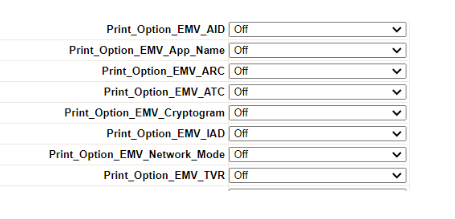
To make receipt shorter:
- Set Header Lines: 4
- Set Trailer Lines: (Adjust as needed)
- Add the required receipt-length parameters and set them to OFF.
Cashback
If pin debit is enabled and cashback is requested:
- Enter the cashback limit here.
- 2000 = $20 limit
- 30000 = $300 limit
Dual Pricing
If Dual Pricing, add the following parameters in under custom:
Enable Dual Pricing within these settings.
Turn OFF:
- Allow Partial Approvals
PIN Pad & Signature Registration
If a pin pad is being used:
Devices_Required_EXT_PIN_Pad → Dejavoo
Signature Settings
- Devices_Required_SignaturePad = No → Signature captured on screen
- Devices_Required_SignaturePad = Yes → Signature captured on receipt
TSYS / FDO Configuration
E gift Solutions on Dejavoo
Dejavoo Marketplace
Passcodes:
- 1111
- 1379