.png?width=300&height=300&name=Untitled%20design%20(6).png)
This guide covers the following topics:
Accessing iPOS for P-Series Terminals
|
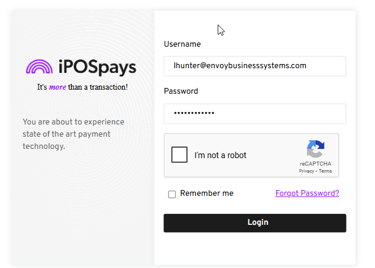
Log in at: Use your assigned credentials to access the system.
|
 |
Initial Download
When the terminal is connected to a network, it will prompt for a TPN.
Enter the TPN, and the device will automatically begin downloading the parameters.
Terminal Requests “One-Time Passcode”
If you are performing an install or full download and the terminal prompts for a one-time passcode, you will need to retrieve it from the Dejavoo iPOS Portal.
-
Log in to Dejavoo iPOS:
https://portal.ipospays.com/auth/login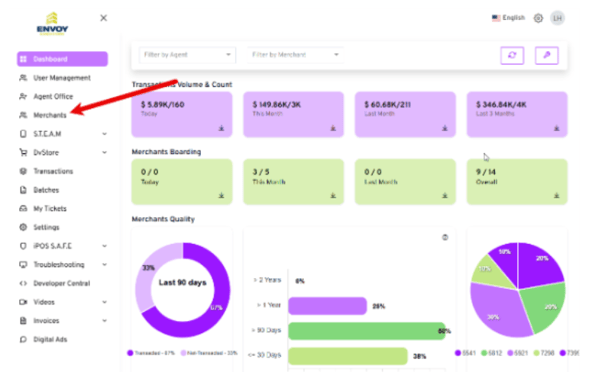
-
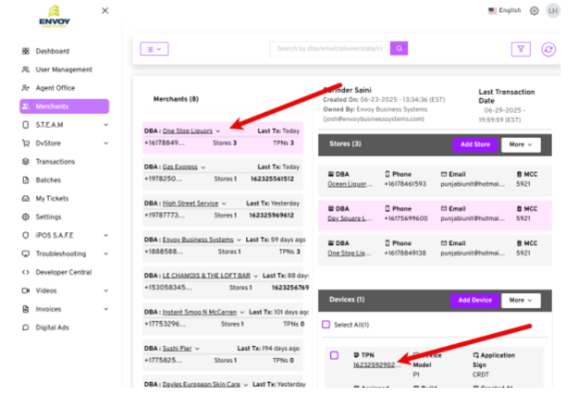
Select Merchants from the main menu.
-
Choose the appropriate Merchant, then select the TPN.
-
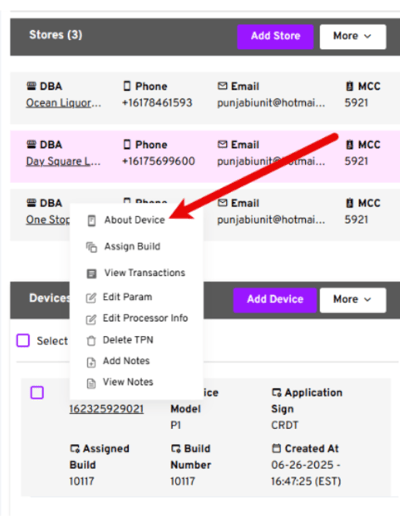
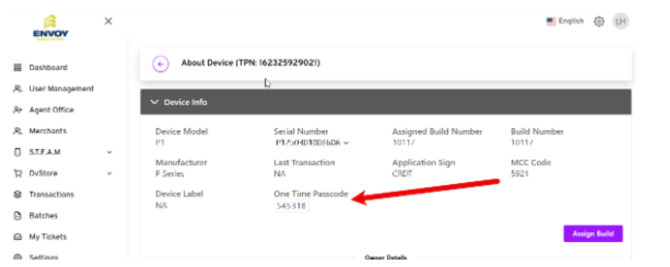
Within the TPN details, click About Device.
-
The One-Time Passcode will be displayed on this page. Enter this code into the terminal to continue the installation or download process.
Update Dejavoo P Series Terminal
- Touch the Star
- Touch “Upgrade App”
- Touch “Download Parameter”
Parameter Update
To perform a parameter update:
- From the main screen, tap the Star icon.
- Select Upgrade App.
- Choose Download Parameter.
“Registration Fail” Error During Testing
If you encounter a Registration Fail message, it indicates an incorrect parameter in the setup file.
Verify the MID and TID, correct any inaccuracies, and then perform a parameter update to refresh the terminal.
Invoice Numbers
Automatic invoice numbering is not supported.
Each invoice must be entered manually.
Unable to Backspace or Change the TPN
On the P1, the TPN field cannot be cleared once entered.
If you need to input a new TPN:
- Go to Settings.
- Select Apps.
- Choose DvPay Lite.
- Go to Storage.
- Tap Clear Data.
- Retry the TPN process.
Terminal Asking for an M PIN
The M PIN is the last six digits of the TPN.