.png?width=300&height=300&name=Untitled%20design%20(6).png)
|
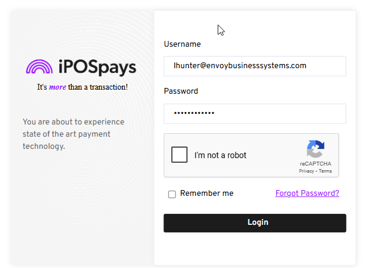
Step 1: Access the iPOS Portal Go to: https://portal.ipospays.com/auth/loginYou will land on the iPOS login screen. Enter your Username and Password |
|
|
Step 2: Navigate to the iPOS Dashboard Once logged in, you will be directed to the main dashboard.
|
 |
|
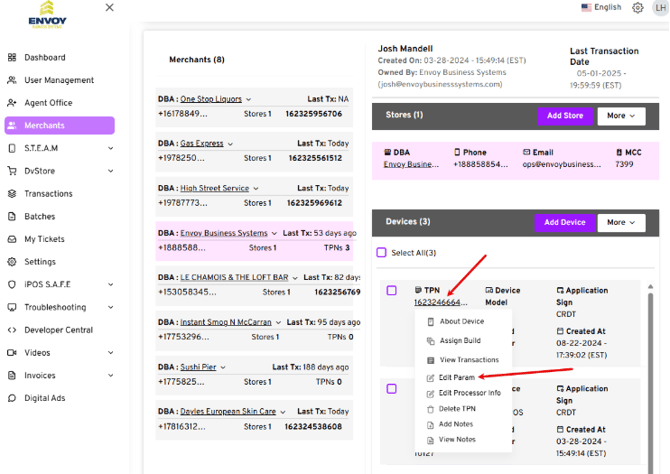
Step 3: Access Merchant Files Click “Merchants” on the left-hand menu.
|
 |
|
Step 4: Select the Merchant Click on the merchant’s name; it will highlight in pink.
|
 |
|
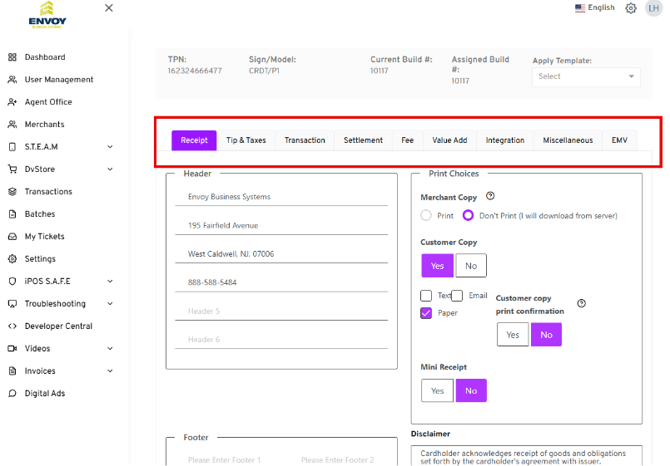
Step 5: Make File Changes At the top, you will see tabs like:
|
 |
|
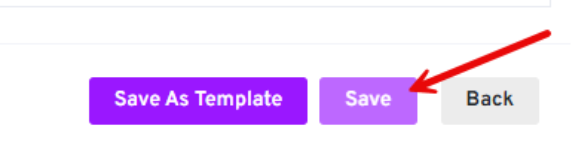
Step 6: Save Your Changes Scroll to the bottom of the page. Click the “Save” button to confirm and store your updates.
|
 |
|
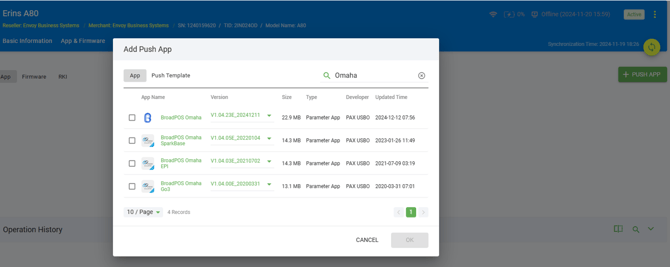
Step 7: Push the File to the Terminal
|
|