.png?width=300&height=300&name=Untitled%20design%20(6).png)
Step-by-step instructions to change the screen brightness (display contrast / backlight) on a Valor payment terminal.
| From the Home Screen, press the Menu button in the middle of the screen. | 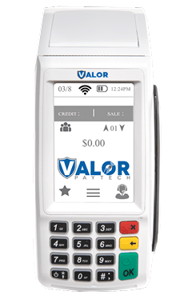 |
|
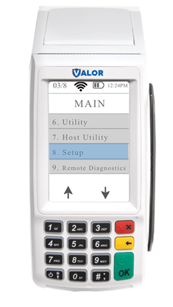
Press Page Down to show the second page of the Main Menu. Select Setup Menu. |
 |
| Choose Display Contrast. | 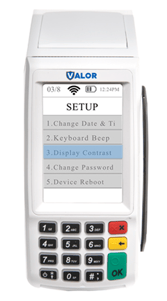 |
|
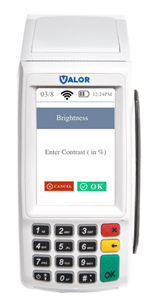
Enter a value from 1–100 (1 = dimmest, 100 = brightest). Press OK on the touchscreen or press the OK key on the keypad to save the setting. |
 |
Troubleshooting
-
Brightness doesn’t change: Re-enter the Display Contrast menu and verify the value saved. Try rebooting the terminal and check again.
-
Setting resets after reboot: If the brightness doesn’t persist, check for any power-management or sleep settings (or firmware issues)