.png?width=300&height=300&name=Untitled%20design%20(6).png)
Step 1: Select Remote Diagnostics on the sidebar menu.
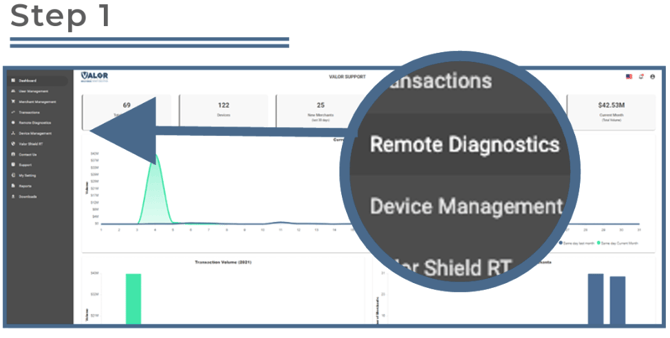
Ensure the merchant’s device is connected to Remote Diagnostics in the Valor Portal. Once the connection is established, the device will appear in the Remote Diagnostics section.
Step 2: See a Snapshot of the merchant's device.
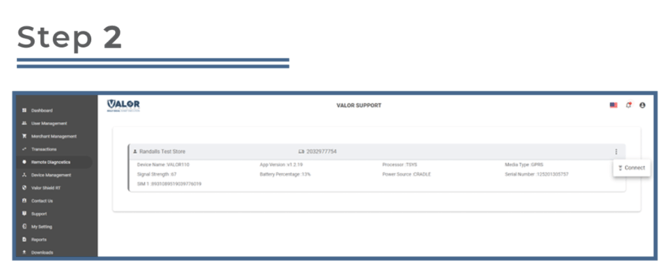
See a snapshot of the merchant’s device, which includes the following information:
-
Application Version
-
Processor
-
Internet Connection Type
-
Signal Strength
-
Battery Percentage
-
Power Source
-
Serial Number
Remote Diagnostic Functions
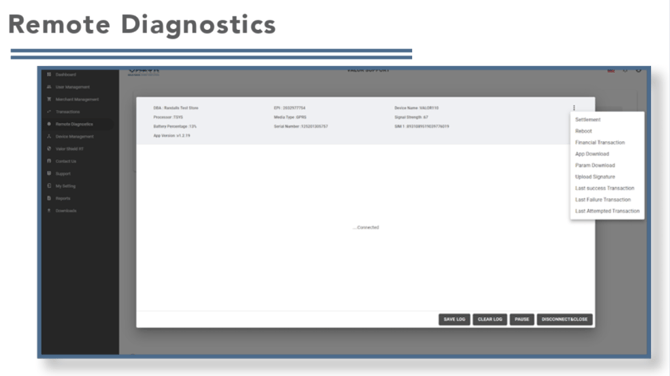
Once connected, you can perform the following actions directly from the portal:
-
Settlement – Perform a settlement on the current open batch.
-
Reboot – Reboot the device remotely.
- Financial Transaction – Initiate a transaction.
Note: This is the only stage where the merchant has control of the device. As they perform the transaction, you will see live updates of its progress.
-
App & Parameter Download – Start an application and/or parameter download on the device.
Tip: To perform this action, pause the remote diagnostic session first, then:
-
-
Go to Device Management.
-
Assign the new version or modify the desired parameters.
-
Resume the remote diagnostic session and start the download.
-
-
Last Successful Transaction – View a log of the most recent successful transaction.
-
Last Failed Transaction – View a log of the most recent failed transaction.
-
Last Attempted Transaction – View a log of the last transaction attempted on the device.