.png?width=300&height=300&name=Untitled%20design%20(6).png)
This article explains how to initiate a Remote Diagnostics session at the terminal, what the tech can do after connecting, and a few operational notes (including how app/parameter downloads are handled). The instructions below reflect the terminal Main Menu flow and the RD session options.
| From the Home screen, tap the three horizontal lines in the middle of the display to open the Main Menu. | 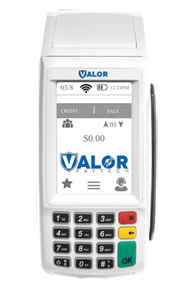 |
|
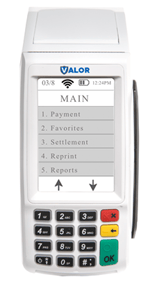
Press the Down arrow to view the second page of the Main Menu.
|
 |
|
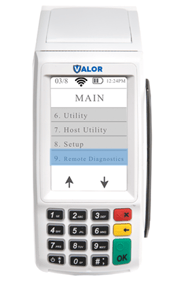
From the second page, choose #4 — Remote Diagnostics
|
 |
|
When prompted, enter the password.
|
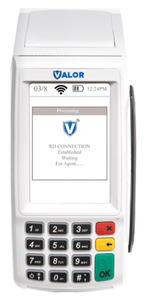 |
After successful entry, the terminal displays that the connection is established with the RD Server and indicates it is waiting for the Agent (tech) to connect.
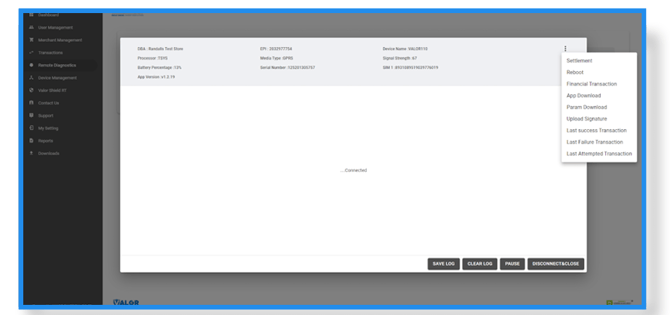
Once connected, the remote tech can perform several operations. Key options you will see on the terminal include
-
Settlement — perform a settlement on the currently open batch.
-
Reboot — remotely reboot the device.
-
Financial Transaction — allows the tech to initiate a transaction; this is the only point during the RD session when the merchant will have control over the device.
-
App & Parameter Download — the tech can initiate an application or parameter download, but the download process requires an additional sequence described below.
-
Logs — view Last Successful, Last Failed, and Last Attempted transaction logs to assist troubleshooting.
App & Parameter Download note: For downloads to work reliably, the tech must pause the remote diagnostic session, go into Device Management on the portal, assign the new version to the device, resume the RD session on the terminal, then start the App or Parameter download. This ensures the device is assigned the correct package before the remote download begins.