.png?width=300&height=300&name=Untitled%20design%20(6).png)
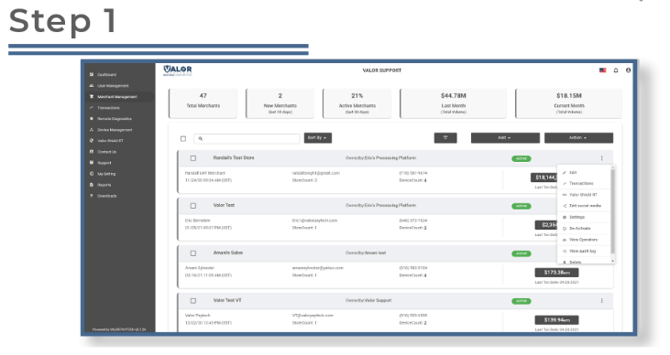
In the sidebar menu, select Merchant Management.
-
- Next to the merchant you want to update, click the ellipsis (⋯) icon and choose Edit.
Once the merchant details page loads, go to the Device section.

-
- Under Cash Discount/Surcharge (where VAR information is entered), you’ll find two configuration options:
- Flat Fee Amount: A flat fee is a fixed dollar amount charged per transaction, regardless of the transaction’s total value.
- Custom Fee %: A Custom % Fee is a percentage-based charge applied to each transaction.
- Select Flat Fee Amount, then enter the dollar amount you want to apply.
- If you’re updating multiple devices, open the Device Name dropdown, select each device one at a time, apply the same change, and click Update Device after each update.
- When finished, click Next.
- Under Cash Discount/Surcharge (where VAR information is entered), you’ll find two configuration options:
Click Update Merchant to save your changes.
