.png?width=300&height=300&name=Untitled%20design%20(6).png)
Change Time Format (on Terminal Favorites Menu)
-
Press the ★ (Star) icon on your terminal to open the Favorites Menu.
-
Select Setup, then Change Date & Time.
-
Choose between 12-hour clock or 24-hour clock format.
-
Confirm your selection to save the changes.
Change the Time Zone in Valor Portal
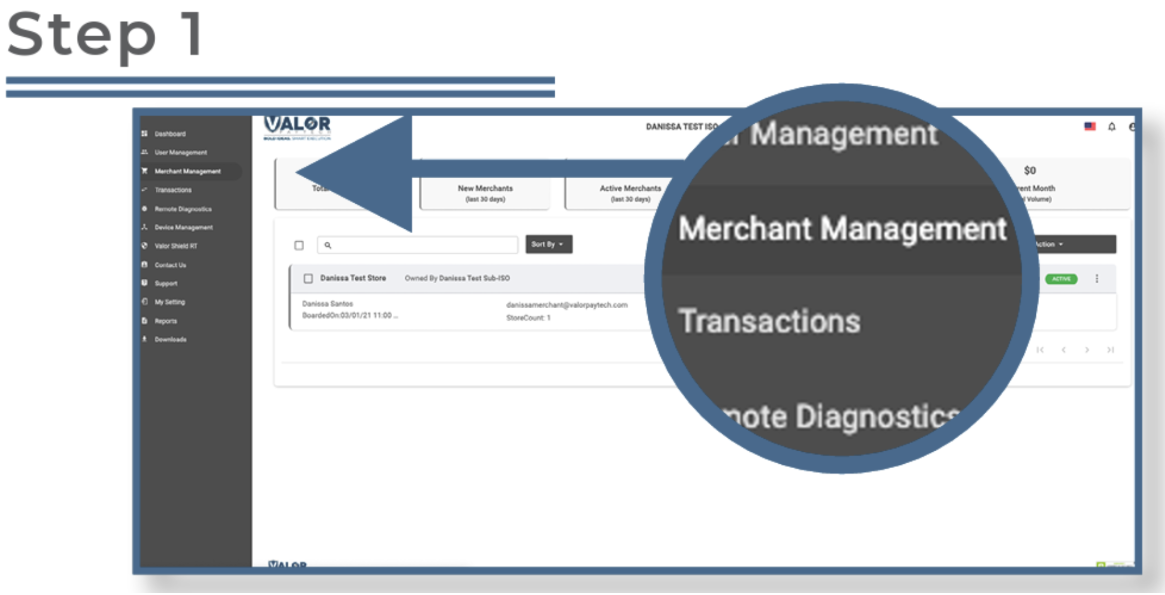
Select Merchant Management in the sidebar menu.
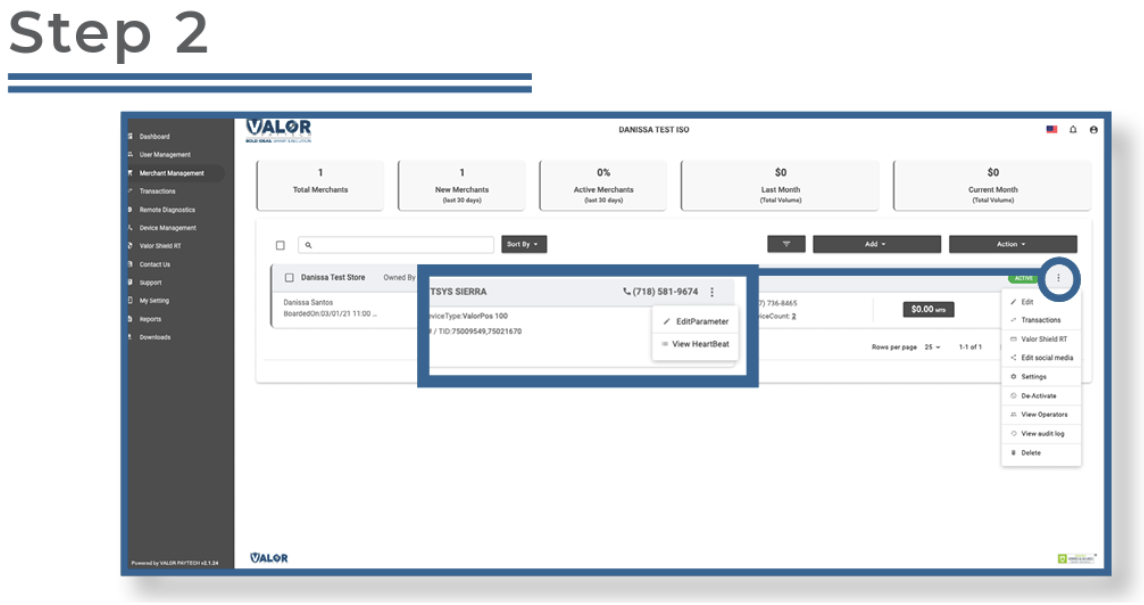
Search for the merchant, select the ellipsis (⋮) on the top right of the snapshot, then click Edit.

In the Time Zone dropdown, select the correct time zone for the merchant. Once set for each store, select Next.
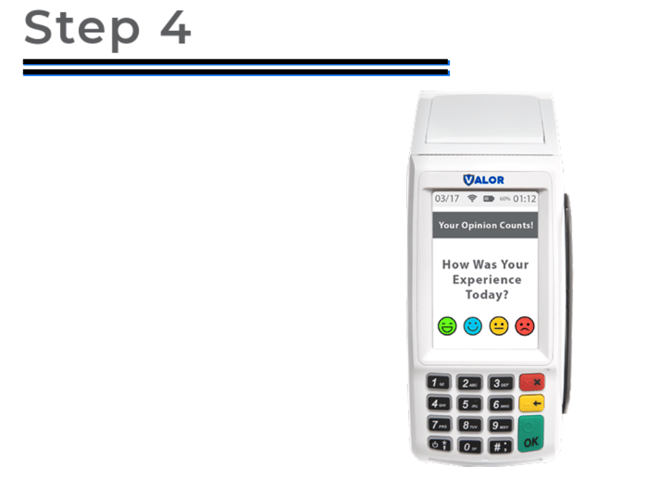
After making parameter changes, perform a download on the device by pressing
★ > 6 > OK.