.png?width=300&height=300&name=Untitled%20design%20(6).png)
Use this article when supporting merchants or performing maintenance on terminals that use the on-screen Menu / Setup options.
Before you begin
-
Make sure the device is powered on and at the Home screen.
| From the Home screen, press the Menu button (located in the middle of the screen). | 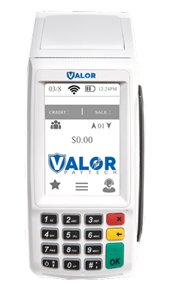
|
|
Press Page Down to display the second page of menu options. Select Setup. |
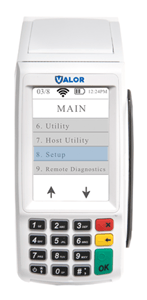
|
| Select Change Password. You will be prompted to enter the current password for the terminal. | 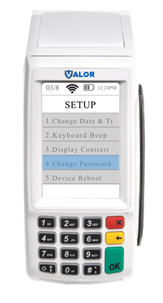
|
| Enter the current password, then enter the new password when prompted and press OK to save. | 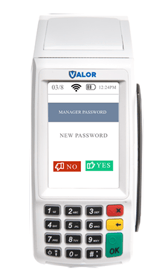
|
Important note: if the terminal is using its default password, the default is the last four digits of the EPI