.png?width=300&height=300&name=Untitled%20design%20(6).png)
Step 1: Access Transactions
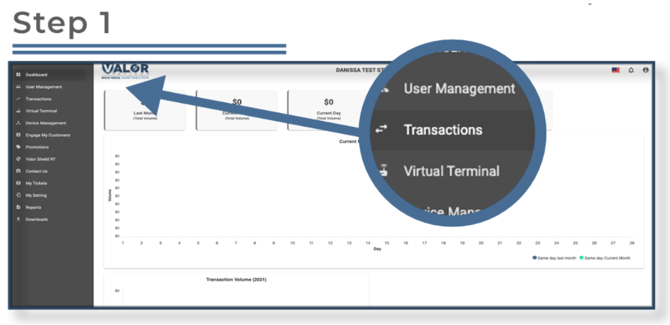
- From the sidebar menu, select Transactions.
- You’ll see a list of your live transactions. To locate a specific transaction, click on the Filter button to the left of Action.
Step 2: Filter for Pre-Authorized Transactions
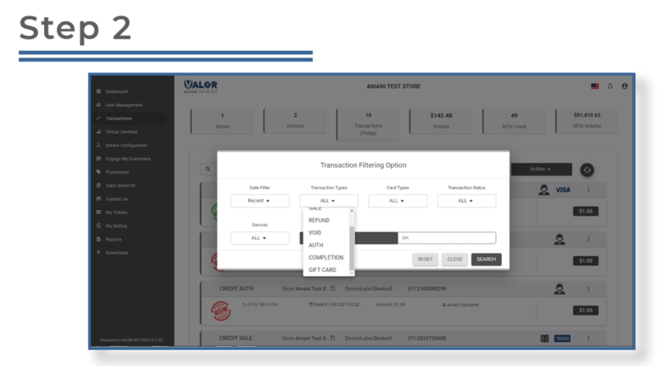
- In the Transaction Filter menu, choose AUTH from the dropdown options.
- This will display all pre-authorized transactions. Once selected, click Search to view the filtered list.
Step 3: Capture the Pre- Auth
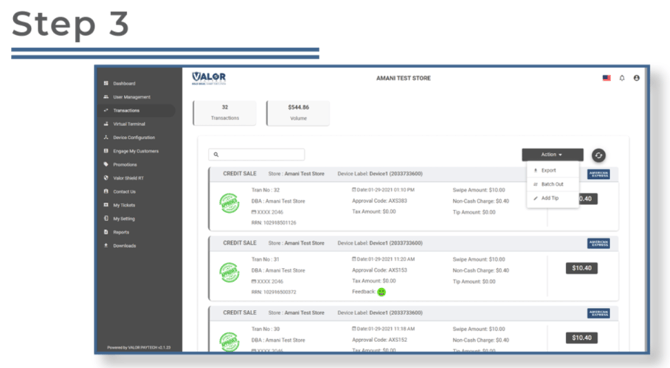
- You will now see all transactions labeled Credit Auth at the top of each transaction snapshot.
- Locate the transaction you wish to capture and click the ellipsis (⋮) in the top right corner of its snapshot.
- From the dropdown menu, select Capture.
Step 4: Confirm and Finalize
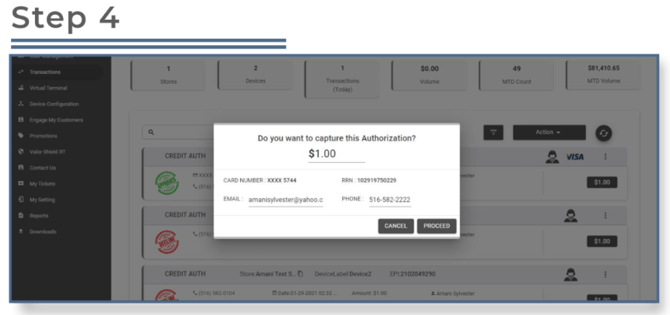
- A confirmation prompt will appear.
- Before completing the capture, you may edit the sale amount, email, and phone number if needed.
- Once verified, click Yes to confirm and finalize the capture.