.png?width=300&height=300&name=Untitled%20design%20(6).png)
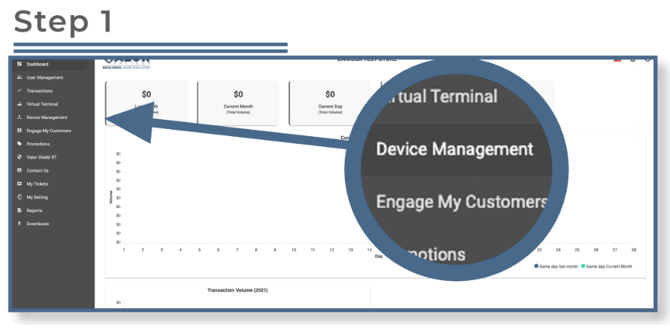
Select Device Management in the sidebar menu.
Select the ellipsis ( … ) on the right-hand side of the device snapshot and choose Edit Parameters.

Expand the Tip, Tax & Fee section, enable Tip, and locate Server/Clerk Setup. Change the toggle to Yes.


-
Change the Server/Clerk Label to your desired title (e.g., “Clerk”).
-
Under Clerk ID, assign an ID number (1–3 digits).
-
Under Clerk Name, enter a name (up to 6 characters).
-
After entering each clerk’s information, click the + to the right.
Note: Once the last server is entered, you must click + or it will not be saved. If you miss this step, the last server will not be registered.

When finished, scroll down and select Save.

After making parameter changes, perform a download on the device by pressing ★ > 6 > OK.